

Profiles
Every member in your community has a public profile page that shows who they are, how much they contribute, and what they have been up to. Profiles build trust between members and give contributors the recognition they have earned.
What You Will Learn
- What a member profile page shows
- How online status works on profiles
- Which tabs are available and who can see each one
- How members edit their own profile
- How members delete their own account from the app or API
- Where reputation and trust level appear
The Profile Page
Every member has a profile page at /community/u/their-username/. Anyone can visit this page - no login is required unless your community is set to private.
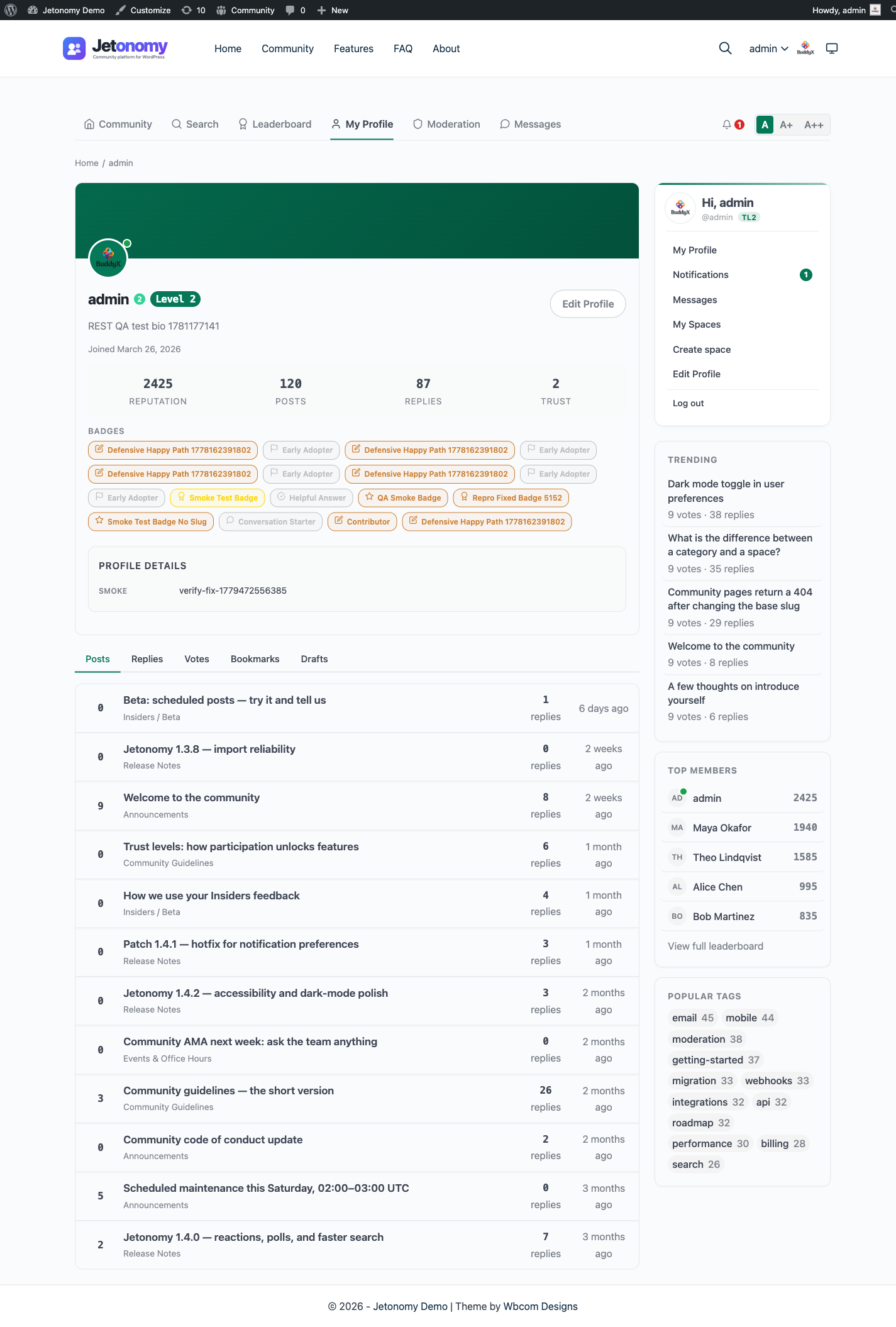
Header Section
The profile header shows:
- Avatar - pulled from WordPress Gravatar by default. Members can upload a custom photo from the Edit Profile page and crop it square before it is saved.
- Display name - the name shown across all community activity
- Username - the login handle used in @mentions and the profile URL
- Bio - a short text description the member writes themselves
- Join date - when the member's account was created
- Online status - a green dot appears if the member was active in the last 5 minutes (see Online Status)
Stats Bar
Below the header, four stats appear at a glance:
| Stat | What it shows |
|---|---|
| Reputation | Total reputation score earned |
| Posts | Number of published topics |
| Replies | Number of published replies |
| Trust Level | Current trust level badge and name |
The trust level badge uses the same color coding as it does on reply cards - grey for TL0, scaling up to gold for TL5.
Profile Tabs
Posts
Lists every topic the member has published, paginated 20 per page, sorted newest first. Each item shows the topic title, the space it belongs to, the vote score, and the reply count.
Replies
Lists every reply the member has posted across all spaces, paginated 20 per page, newest first. Each item shows the reply excerpt, the topic it belongs to, and the vote score.
Votes
Shows the content this member has voted on. The tab is visible to the member themselves and to WordPress Administrators. Other members cannot see this tab - voting is semi-private.
Bookmarks
Lists the topics this member has bookmarked, at /community/u/their-username/bookmarks/. Like Drafts, this tab appears only on the member's own profile. Bookmarks are private to the member who saved them, so no one else (including administrators viewing the public profile) sees this tab. It gives members a quick personal reading list of posts they wanted to come back to. See Bookmarks & Following for how members save and manage bookmarks.
Drafts
Shows unpublished draft topics saved by this member. This tab is visible only to the profile owner and WordPress Administrators. Drafts are never exposed publicly.
Tip: Encourage active members to complete their bio. Profiles with a bio and a recognizable avatar get more replies - other members feel more comfortable engaging when they know who they are talking to.
Editing a Profile
Members can edit their own profile at /community/u/their-username/edit/. This page is accessible from the Edit Profile button on the profile page header.
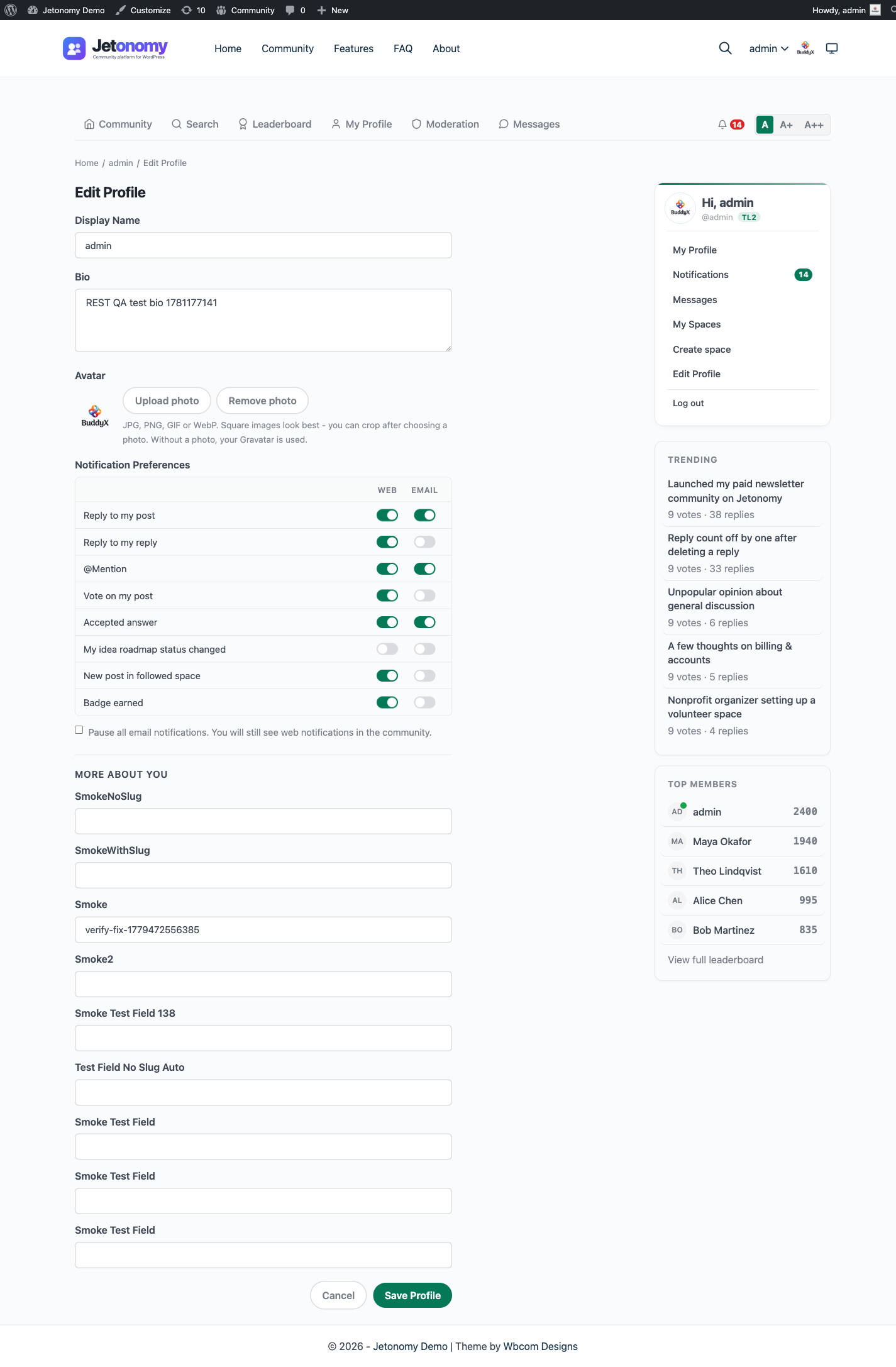
Editable fields:
- First name, last name, and nickname
- Display name publicly as - a dropdown of the names above, plus the member's username
- Bio
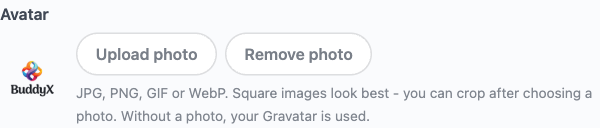
- Avatar - upload a JPG, PNG, GIF, or WebP. After choosing a non-GIF image, a crop dialog opens: drag to reposition, use the slider to zoom, then Crop and upload saves a square avatar (animated GIFs upload as-is to preserve animation). The "Remove photo" button reverts to the Gravatar.
- Notification preferences (email and in-app toggles per type)
WordPress Administrators can edit any member's profile from the standard WordPress Users admin as well.
How the display name works (changed in 1.9.3)
Members do not type a display name freely. They fill in their first name, last name and nickname, then pick which combination to show publicly from a dropdown - the same model the WordPress user profile screen uses.
This matters for two reasons:
- Nobody can publish under a name they do not own. A member cannot set their display name to "Administrator", "Support", your site's name, or another member's name, because the only options offered are built from their own fields. Reserved names are rejected even if a member puts one in their own nickname first.
- It agrees with WordPress. The display name a member picks here is the same value the WordPress user profile screen shows, so the two no longer overwrite each other.
The member's current display name always stays available as an option, so upgrading from an earlier version never renames anyone.
Locking names. Turn on Settings → Members → Only administrators can change member names if your community needs verified real names. Members then cannot edit any of the name fields, and the Edit Profile page tells them so instead of showing controls that will not save. Administrators can still change names from the WordPress Users screen. This is off by default.
Handles and @mentions
A member's handle is separate from their display name. It is the WordPress user slug - the john-smith in /community/u/john-smith/ - and it is what the composer inserts when someone picks a name from the @ autocomplete.
Keeping the two separate means a community can show real names in bylines while members still mention each other by a short, stable handle. It also means Jetonomy and BuddyNext agree on what a handle is, so a mention typed in one is understood by the other.
Deleting Your Account (1.8.0+)
Members can delete their own account from the mobile app or the REST API (DELETE /users/me). There is no web front-end button for this yet - it is available through the app and the API only.
By default, deleting the account does not delete the member's posts. The account itself is removed, and their topics and replies stay in place, reassigned to an anonymous tombstone author. Discussions other members took part in therefore stay readable instead of developing holes.
A member who wants their content removed as well has to ask for it explicitly - the request carries a delete_content: true flag, which erases their topics and replies along with the account. Whatever you build on top of this API should make the difference obvious at the point of confirmation, because "delete my account" and "delete everything I wrote" are two different requests and members routinely mean the second.
Either way the deletion is permanent and cannot be undone from the community front end. Two further guards apply: the route refuses to delete a user who holds manage_options (an administrator has to be removed through WordPress itself), and it is rate limited to 5 attempts per hour per IP.
Embedding Profiles on a Page
You do not have to send members to the full profile page to surface profile information. Two shortcodes let you drop a compact member card or a space member roster onto any WordPress page, post, or widget area. Both are shortcode-only - there is no matching Gutenberg block, so add them with a Shortcode block or directly in the editor.
Member profile card
[jetonomy_user_profile user_id="0"]
Renders a small card with the member's display name, trust level badge, a short bio excerpt, and their reputation and post count. Set user_id to a specific member's ID, or leave it as 0 (the default) to show the currently logged-in member's card - handy for a "your profile at a glance" panel on a members-only page.
Space member roster
[jetonomy_space_members space_id="5" count="20"]
Lists the members of one space, ranked by reputation. Drop it on a space landing page or an "About this community" page so visitors can see who is active.
| Attribute | Default | What it does |
|---|---|---|
space_id |
0 |
The ID of the space whose members to list. Required - leave it unset and nothing renders. |
count |
10 |
How many members to show, highest reputation first. |
Note: The roster attribute is
count, notlimit.
What's Next?
See how your top contributors rank against each other on the community leaderboard.
Related Pro Features
- Custom Badges - award badges automatically or by hand to recognize members.