

Email Digest
Send a curated summary of community activity to members' inboxes - daily or weekly - so they never feel out of the loop.
PRO - This feature requires Jetonomy Pro.
What You Will Learn
- How to enable and configure the Email Digest
- What content appears in each digest
- How members control their digest frequency
- How to send a test digest as an admin
Why Email Digest Matters
Most community members are not daily visitors. They join, participate a few times, and drift away - not because they lost interest, but because they forgot. A well-timed email digest brings them back. It shows them what they missed and gives them a reason to click.
Enabling Email Digest
- Go to Jetonomy → Extensions in your WordPress admin.
- Find Email Digest and click Enable.
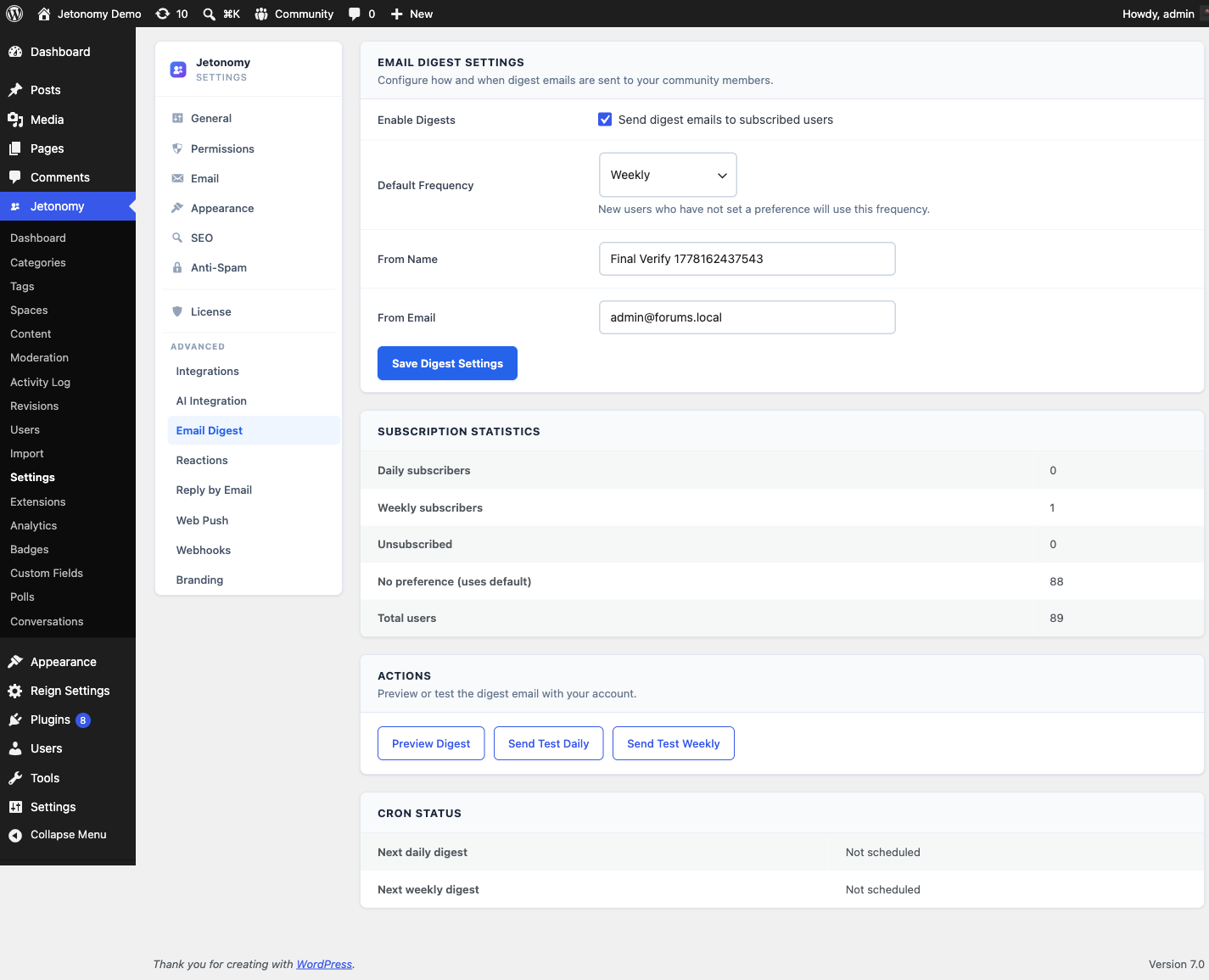
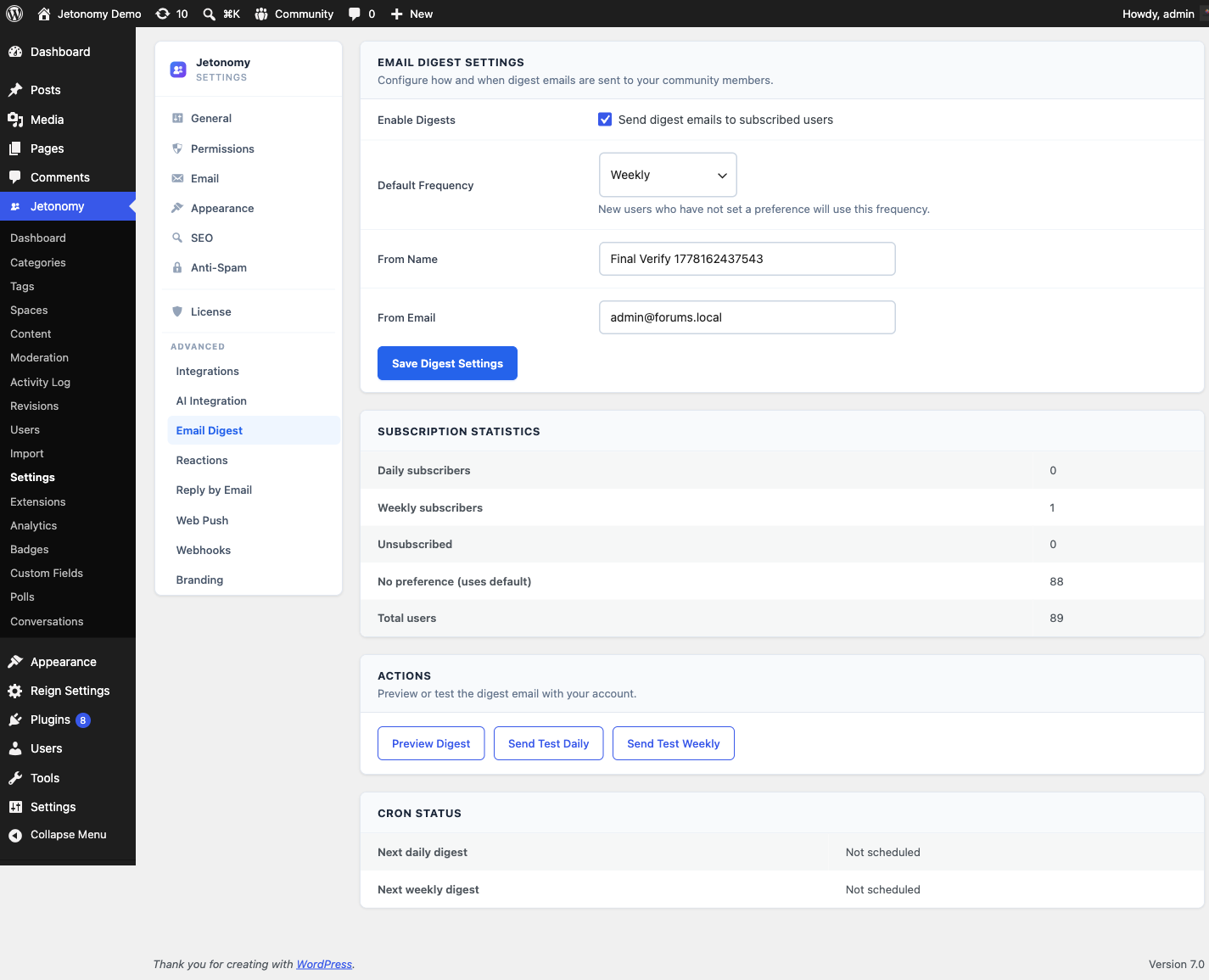
- Go to Jetonomy → Settings → Email Digest to configure sending times and content rules.
Configuring the Digest
Send Schedule
Set when the digests go out:
| Digest type | Default send time |
|---|---|
| Daily | 8:00 AM (site timezone) |
| Weekly | Monday, 8:00 AM (site timezone) |
You can change both send times in the Email Digest settings. Times use the timezone set in Settings → General → Timezone in WordPress.
Digest Content
The digest compiles:
- Top posts - the most-upvoted new topics since the last digest
- Active discussions - posts with the most replies in the period
- Spaces you follow - activity in spaces the member has joined or bookmarked
- Replies to your topics - new replies on topics the member created or commented on
- 🏆 Badges earned (new in 1.4.1) - every badge the member earned during the digest window
- 🗳️ Polls voted on (new in 1.4.1) - every poll the member participated in during the window
You can toggle each content section on or off in the digest settings. At least one section must remain on.
How the new sections work: badges and polls are tracked in a per-user buffer that's capped at 100 events with a 30-day TTL. The buffer is cleared only after a successful send, so opted-out members never accumulate state, and a missed send doesn't lose the activity.
Tip: Keeping "Replies to your topics" on is the single most effective setting. Members always care more about activity on their own posts than about the broader community.
Member Notification Preferences
Each member controls their own digest frequency from Profile → Notification Settings → Email:
| Option | What it means |
|---|---|
| Instant | Individual emails per event (free behavior) |
| Daily digest | One email per day summarizing activity |
| Weekly digest | One email per week summarizing activity |
| None | No community emails |
Members who select Daily or Weekly stop receiving per-event notification emails. The digest replaces them - they are not sent in addition to them.
New members default to Daily digest. You can change this default in the Email Digest settings.
Admin Test Send
Before going live, send yourself a test digest to check formatting and content:
- Go to Jetonomy → Settings → Email Digest.
- Scroll to the Test Send section.
- Enter an email address (pre-filled with your admin email).
- Click Send Test Digest.
The test digest uses real community data from the last 7 days. If your community is new and has little activity, the digest may look sparse - that is expected.
Digest Statistics
The Email Digest settings page shows send statistics for the last 90 days:
| Stat | Description |
|---|---|
| Digests sent | Total number of emails delivered |
| Preference breakdown | How many members are on daily vs weekly vs none |
Open rates and click rates are available if you use a supported ESP adapter (SendGrid, Mailgun, SES, or Postmark) - basic wp_mail delivery does not provide tracking data.
REST API
Email Digest exposes endpoints under jetonomy/v1:
| Method | Endpoint | Description |
|---|---|---|
GET |
/users/me/digest-preferences |
Read the current member's digest frequency and section choices |
PATCH |
/users/me/digest-preferences |
Update the current member's digest preferences |
POST |
/admin/digest/test |
Send a test digest (admin) |
GET |
/admin/digest/stats |
Read digest send statistics (admin) |
Members manage their own preferences; the /admin/* routes require manage_options. See the REST API reference for full payloads.
What's Next?
Connect your community to external tools like Slack, CRMs, and Zapier using outbound webhooks.