

Ideas Roadmap
Free & ProEvery Ideas space includes a built-in roadmap view. Instead of scrolling through a flat list of feature requests, visitors can see all ideas organized by status - what is planned, what is being built, what has shipped, and what will not be pursued. This page explains the roadmap, the status lanes, and how status changes are communicated to your community.
What You Will Learn
- Where to find the roadmap view
- What the four status lanes mean
- How admins update an idea's status
- How status changes surface in notifications and the activity log
- What the roadmap looks like for community members
What the Roadmap Shows
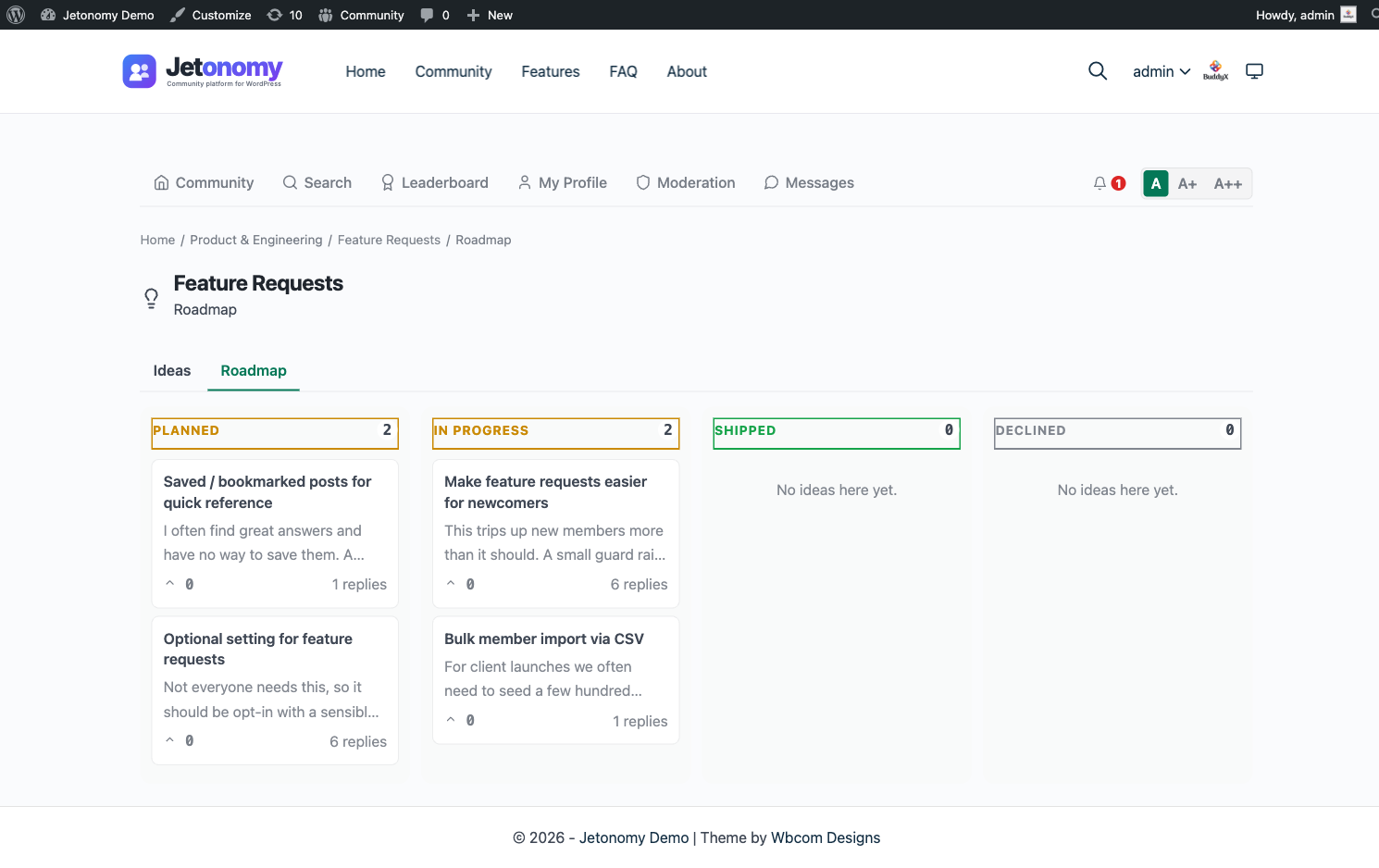
The roadmap is a dedicated view of an Ideas space that groups all ideas by their current status. Access it at:
/community/s/<space-slug>/roadmap/
A link to the roadmap appears in the Ideas space navigation alongside the main topic list. Members do not need to navigate manually - they can switch between the idea list and the roadmap from within the space.
Each status lane shows all ideas in that state, sorted by vote score within the lane (highest votes first). This gives members a clear view of what the community wants most and where each request stands.
Status Lanes
The roadmap has four lanes:
| Status | What it means |
|---|---|
| Planned | The idea has been accepted and is on the roadmap. Work has not started yet. |
| In Progress | The team is actively building or implementing this idea. |
| Shipped | The idea has been completed and is now available. |
| Declined | The team has decided not to pursue this idea. A reply with context is recommended. |
New ideas submitted by members have no status by default. They appear in the main idea list but not in any roadmap lane until a moderator or admin assigns a status.
Tip: When you decline an idea, add a reply explaining why. Members who took the time to submit and vote on an idea deserve a clear answer. Declined ideas with a closing comment are far less likely to be re-submitted repeatedly.
How Admins Update a Status
Any space moderator or admin can change an idea's status:
- Open the idea (the single post view).
- Find the Status control in the post meta area below the title.
- Select a new status from the dropdown: Planned, In Progress, Shipped, or Declined.
- Click Update Status.
The status change saves immediately. A system entry appears in the reply thread showing what the status changed from and to, with a timestamp. This gives the idea's full history in one place.
You can also update status from the space admin panel at Jetonomy → Spaces → [Space Name] → Posts. The status column is editable inline from that view, which is useful for processing a batch of ideas at once.
How Status Changes Surface in Notifications
When an idea's status changes, Jetonomy sends notifications across three channels:
Activity log - A system activity entry is created in the idea's reply thread, visible to anyone who opens that idea.
Email digest - If a member follows the Ideas space and has email digest enabled, the status change is included in their next digest email (daily or weekly depending on their preference).
In-app inbox - The idea author receives an in-app notification immediately. All followers of the Ideas space also receive an in-app notification.
Members who do not follow the space will not receive notifications about that specific status change. Encourage members to follow the space after submitting an idea so they stay informed.
Customer-Visible Behaviors
What members see at each stage:
- New idea with no status assigned - Appears in the idea list. Not shown in any roadmap lane until an admin or moderator picks a status. Vote buttons are active so members can build up signal even before the team triages.
- Planned - Appears in the Planned lane on the roadmap. A "Planned" badge shows on the idea card.
- In Progress - Moves to the In Progress lane. Badge updates. Members can see work has started.
- Shipped - Moves to the Shipped lane. Badge shows "Shipped." Upvote button remains available so members can react positively to the delivery.
- Declined - Moves to the Declined lane. Badge shows "Declined." Vote controls remain visible.
Ideas can be moved between statuses at any time. Moving a shipped idea back to In Progress (for a revision, for example) is valid and will notify followers again.
What's Next?
The roadmap is a deep-dive on the Ideas space type. To set up a space without leaving the front end, see the front-end create flow.