

Manage Categories
Categories let you group related spaces under a shared label so members can browse a subset of your community without seeing everything at once.
This is the admin reference for the Categories screen. For how categories fit alongside spaces in your community structure, see Categories in the Spaces & Categories guide.
What You Will Learn
- How to create, edit, and delete categories
- How to open a category on the front end from the list
- How category visibility works
- How to reorder categories with drag and drop
- How icons and colors work
Go to Jetonomy → Categories to access this screen.
Required Capability
The Categories admin page requires jetonomy_manage_settings, which is administrator-only by default. Both jetonomy_manage_settings and jetonomy_manage_spaces are granted only to administrators - Editors do not receive either capability, so they cannot open this page.
Page Layout
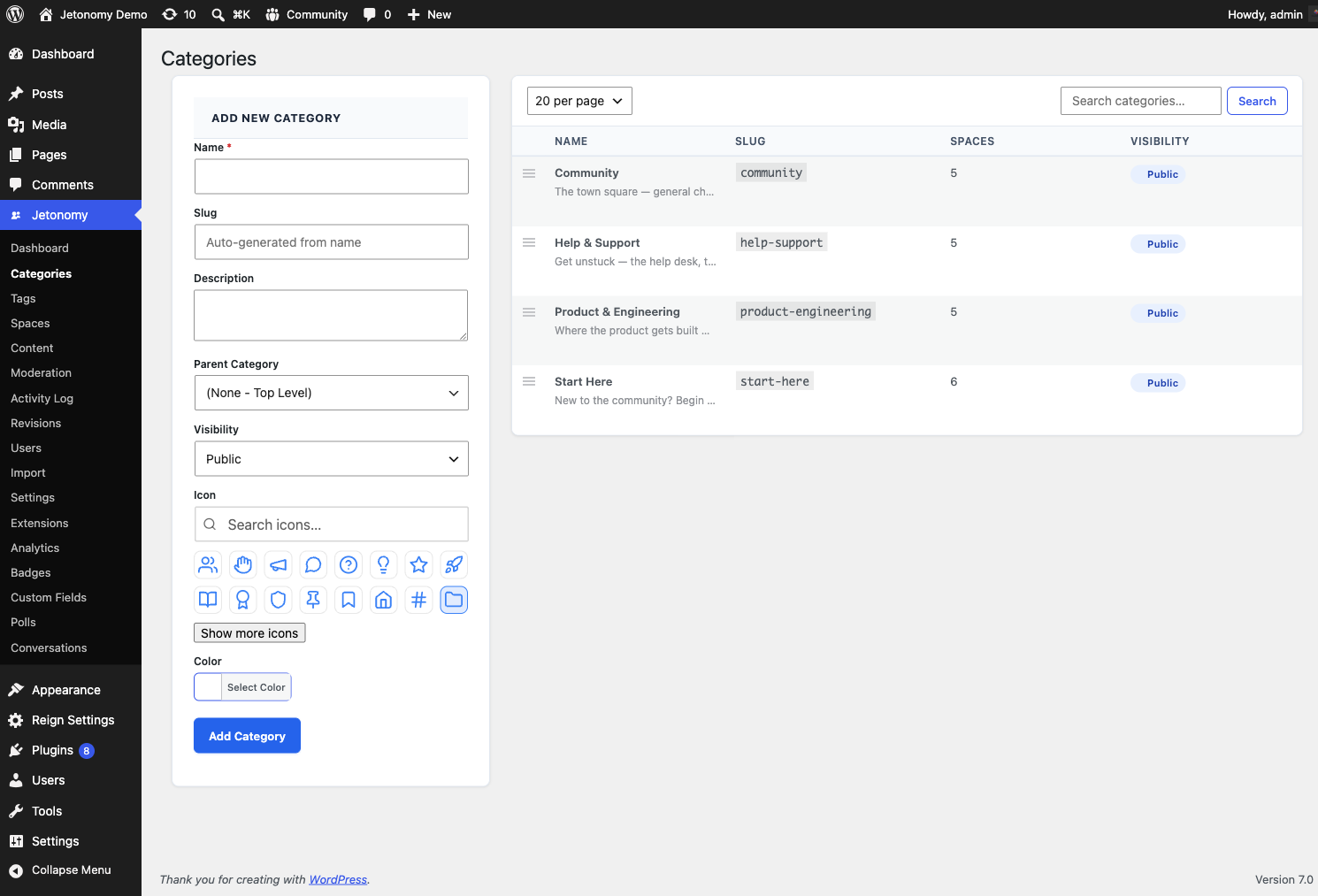
The Categories screen is split into two panels side by side:
- Left - Add New Category form for creating a new category
- Right - Categories table listing existing categories and their children
Creating a Category
Fill in the Add New Category form and click Add Category.
| Field | Required | Notes |
|---|---|---|
| Name | Yes | Displayed in navigation and on the category page |
| Slug | No | Auto-generated from the name if left blank. Used in URLs. |
| Description | No | Optional text shown on the category listing page |
| Parent Category | No | Nest this category under an existing one. Two levels max. |
| Visibility | No | Controls who can see this category (see Visibility section below) |
| Icon | No | Choose from the Lucide icon picker |
| Color | No | Color swatch displayed next to the category name in navigation |
Visibility Options
| Option | Who can see the category |
|---|---|
| Public | All visitors (including logged-out) when guest access is on |
| Private | Logged-in members only |
| Hidden | Not shown in navigation or listings; direct URL still works |
The category's visibility does not override the visibility of individual spaces within it. A public category can contain private spaces.
Editing a Category
Click Edit in the row actions under any category name. An Edit Category modal opens with the same fields as the creation form. Make your changes and click Update Category.
Viewing a Category on the Front End
Each row shows the category's full front-end path in the Slug column - the complete address such as /community/category/announcements/, not just the bare slug. A View link in the row actions opens that page in a new tab.
Since Jetonomy 1.6.0 the list surfaces this path and View action directly, so you no longer have to guess the address from the slug and risk a 404. Use View to confirm a category renders as expected right after creating or editing it.
Deleting a Category
Click Delete in the row actions. A browser confirmation prompt appears before the delete runs.
Warning: Deleting a category does not delete the spaces inside it. Spaces that belonged to the deleted category lose their category assignment and move to "uncategorized." There is no undo - confirm you have reassigned or are okay losing the grouping before deleting.
Reordering Categories
Drag the handle icon at the far left of any row to reorder categories. The order is saved automatically when you drop the row. Child categories follow their parent when the parent moves.
Child Categories
Set Parent Category when creating or editing a category to nest it under an existing top-level category. The table renders children indented below their parent. Two nesting levels are supported.
Search
Use the search box in the table toolbar to filter categories by name. Clear the search to see all categories again. The search does not affect the Add New Category form.
Rows Per Page
The dropdown in the table toolbar controls how many categories appear per page (20, 50, or 100). The selection submits the form immediately.
What's Next?
Enable or disable Jetonomy Pro extensions if you have the Pro plugin active.