

Membership & Join Policies
Free & ProEvery space has two controls: who can see it (visibility) and how members get in (join policy). Combining them gives you precise control over every access scenario - from fully public forums to invite-only private communities. The two controls are independent in every combination except one: a Hidden space is always Invite Only (see the note under Hidden below).

What You Will Learn
- The three visibility levels and when to use each
- The three join policies and how they differ
- Per-space posting restrictions
- Space member roles and what each can do
- How to combine visibility and join policy for common use cases
What you get if you leave the defaults alone: a new space is Public visibility with an Open join policy unless you change it (or unless you have changed the community-wide default under Jetonomy → Settings). That means anyone can find, read, and join the space with no approval - the most open setting. Tighten it from there for private or invite-only communities.
Visibility Levels
Visibility controls whether the space appears in listings and whether non-members can read its content.
Public
The space appears on the community home page, in search results, and in category listings. Any visitor - including users who are not logged in - can read all posts and replies.
Members still need to join (or be approved) before they can post or reply, depending on your join policy.
Use Public when you want maximum reach and SEO value. Most community spaces should start here.
Private
The space itself appears in listings and search results, so any visitor can discover it. Only members can read the posts and replies. Non-members see the space name and description, then a Join or Request to Join button depending on the join policy: Open spaces show "Join" for an instant-access join; Approval Required spaces show "Request to Join" for a moderated admission.
The discoverable part is the space, not its content. A post inside a private or hidden space is not leaked to non-members anywhere: it is excluded from search results, from oEmbed and link-preview cards, from tag pages, from trending and popular lists, and from the recent-posts widgets and home feed. A non-member cannot pull the post body in through any of these public surfaces - only members (and admins) see it.
Private is the right choice when the community should be findable but the content should be gated. It is distinct from Hidden: a Private space is visible in the directory and search; a Hidden space is not listed anywhere.
Use Private for paid membership communities, internal team discussions, or beta program spaces where content should be gated but the space itself should be findable.
Hidden
The space does not appear in any listing, search result, or category navigation. Only members who have already joined - and admins - can see it.
Members can only reach a hidden space via a direct link or an invite link you share with them.
Use Hidden for admin-only spaces, private moderator discussion boards, or early access groups where you control every invitation.
Hidden spaces are always Invite Only. Because a Hidden space has no public Join button, its join policy is locked to Invite Only - members can only enter through an invite link you share. If you pick Hidden in wp-admin, the join policy is switched to Invite Only for you automatically (and if you set a Hidden space back to Open or Approval Required, the visibility drops to Private). From the front-end create/edit form or the REST API, the same combination is rejected on save with the message "Hidden spaces must use the invite-only join policy" - so always pair Hidden with Invite Only.
Note: WP Admins and space admins can always see hidden spaces in the admin panel, regardless of their membership status.
Join Policies
Join policy controls how members gain access to the space. It works in combination with visibility.
Open
Any logged-in user can join instantly by clicking the Join button on the space header. There is no approval step.
Members who join an Open space can post and reply immediately (subject to your per-space posting restrictions).
Use Open for general discussion spaces, community-wide help channels, and any space where you want minimal friction.
Approval Required
When a user clicks Join, they submit a join request. The request goes to the space moderators and admins for review.
In wp-admin, moderators see pending requests on the space's own edit screen: Jetonomy → Spaces → [space] → Edit → Join Requests. They can approve or decline each request, and the user gets a notification when their request is reviewed.
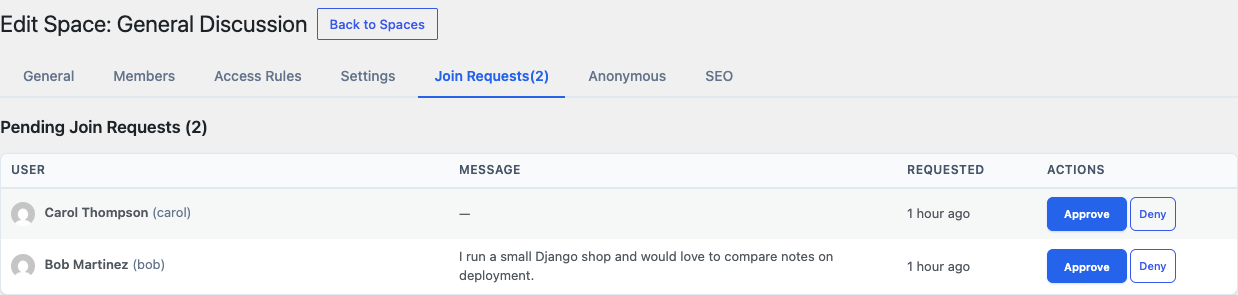
Do not see a Join Requests tab? It only appears when the space's join policy is set to Approval Required, or when the space already has pending requests. On an Open space there is nothing to approve, so the tab stays hidden. Set the policy first, on the General tab of the same screen.
Since 1.5.0, space moderators can also handle requests from the community front-end, without opening wp-admin. On the space Members page (/community/s/:slug/members/), a "Pending join requests" panel lists each requester with Approve and Deny buttons. Approving admits the member instantly and emails the requester that they are in; denying clears the request. This is the same approve/admit path as the wp-admin tab, so a space moderator who has no wp-admin access can still run an Approval Required space end to end.
Approved members can then post and reply immediately.
Use Approval Required when you want to vet members before they can participate - for example, a verified customer support channel or a professional community with admission criteria.
Invite Only
No join button is shown to non-members. Members can only enter via an invite link generated by a space admin.
You can create invite links from either surface:
- Front-end - on the space Members page (
/community/s/:slug/members/), the Invite links panel generates, copies, and revokes links. - wp-admin - open the space at Jetonomy → Spaces → [space] → Edit and use the Invite Links section.
Each link has a configurable usage limit and optional expiry date, and you can see how many times each link has been used.
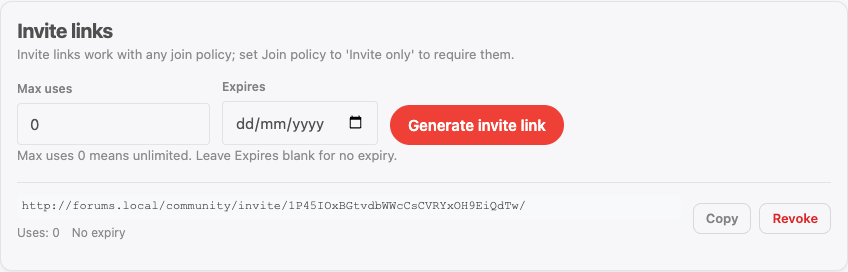
Invite links are space-admin only - moderators cannot see them. This is deliberate, and it is a stricter rule than the one for join requests: an invite link is a bearer credential into a space that may be hidden, so listing the links discloses them. Space moderators can approve join requests but cannot view or mint invite links. The REST API applies the same rule server-side, so this is a real permission boundary, not just a hidden panel.
Anyone who visits a valid invite link is automatically added as a member - no approval step required.
Use Invite Only for private groups, course cohorts, or closed communities where every member should be explicitly invited.
Per-Space Posting Restrictions
Beyond join policy, each space has two additional settings that control what members can do once inside:
Who Can Post - Controls who can create new topics in this space.
| Setting | Effect |
|---|---|
| (Use Global Default) | Falls back to the community-wide Who Can Post setting |
| Members Only | All members of the space can post |
| Moderators & Admins | Only space moderators and admins can post |
| Admins Only | Only space admins (and site admins) can post |
Who Can Reply - Controls who can reply to existing topics.
| Setting | Effect |
|---|---|
| (Use Global Default) | Falls back to the community-wide Who Can Reply setting |
| Members Only | All members of the space can reply |
| Moderators & Admins | Only space moderators and admins can reply |
These settings let you create announcement-only spaces (post set to Moderators & Admins, reply set to Moderators & Admins), or read-heavy Q&A spaces where only trusted members can contribute.
Space Member Roles
Every member of a space has one of three roles:
Member - Can read, post, and reply within the space's configured restrictions. Can vote, follow, and bookmark topics.
Moderator - All member abilities plus: approve pending posts, pin topics, close topics, move topics, delete posts and replies, manage join requests, and review flagged content within the space. Moderators cannot view or create invite links - see the note above.
Admin - All moderator abilities plus: change space settings, assign moderator and admin roles to other members, manage access rules, view and create invite links, and archive or delete the space.
Note: WordPress site admins can perform all admin-level actions on any space, regardless of their space role.
Promoting members from the front-end (1.3.8+)
Space admins (and site admins) can change a member's space role directly from the front-end members page at /community/s/:slug/members/. Each member row carries a role dropdown; picking a new role saves the change live with inline success or error feedback. There is no wp-admin round-trip to add a moderator and no separate settings screen to open.
The dropdown is hidden for members who cannot manage roles, and a member cannot demote themselves below the level needed to keep at least one space admin. Members visible in the list still have to be members of the space to be assigned a role; the same per-space role rules listed above apply.
Common Visibility + Join Policy Combinations
| Goal | Visibility | Join Policy |
|---|---|---|
| Public community forum | Public | Open |
| Paid membership forum | Private | Approval Required |
| Team-only internal channel | Hidden | Invite Only |
| Verified customer support | Public | Approval Required |
| Early access beta group | Hidden | Invite Only |
| Course community | Private | Open (link-gated via Invite Only) |
What's Next?
See every per-space setting in one place, including how they override global defaults.