

Reply by Email
Let members reply to community discussions directly from their email client - no login required for that one reply.
PRO - This feature requires Jetonomy Pro.
What You Will Learn
- How Reply by Email works end to end
- How to configure the inbound email endpoint
- How emails are parsed and turned into replies
- How to test the feature and handle parsing errors
Why Reply by Email Matters
Every step between "I got a notification" and "I posted a reply" loses members. Reply by Email removes all those steps. The member reads the notification in their inbox, types a reply directly, hits Send, and the reply appears in the community - without opening a browser or logging in. Removing that friction increases reply volume noticeably.
How It Works
- Jetonomy sends a notification email for a new reply or mention.
- The email contains a Reply to this post call to action with a unique reply-to address.
- The member replies to that email.
- The inbound email is delivered to your configured endpoint.
- Jetonomy parses the email, strips quoted content, and creates a community reply attributed to that member.
Each reply-to address is unique to the member and the topic - it encodes an authentication token so no login is required.
Configuration
Reply by Email requires an inbound email endpoint - a URL that receives incoming emails from your email provider. Most email providers (SendGrid Inbound Parse, Mailgun Inbound Routes, Postmark Inbound, or Amazon SES with SNS) can forward inbound email as an HTTP POST to a URL.
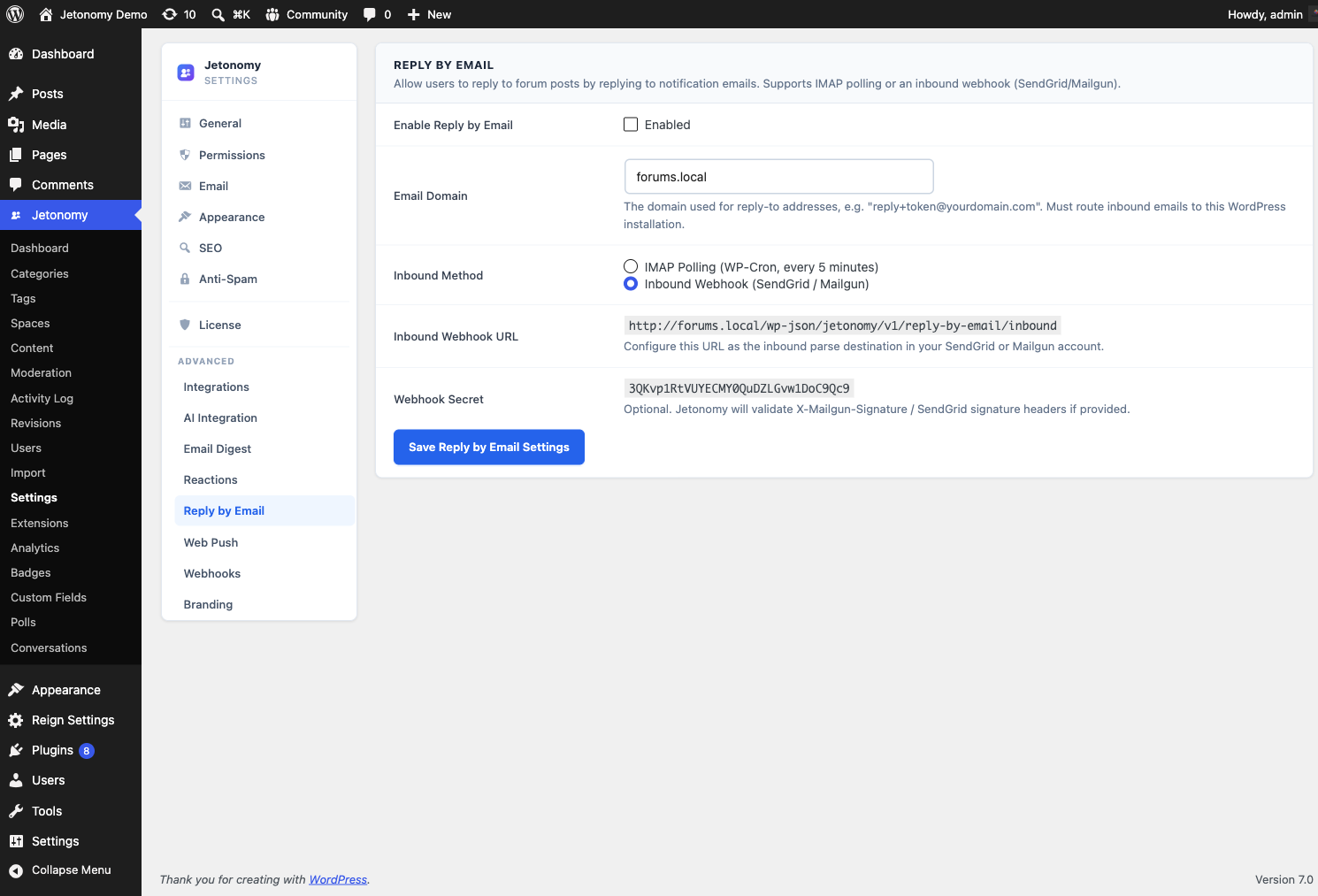
Step 1: Get Your Inbound Endpoint URL
- Go to Jetonomy → Settings → Reply by Email.
- Copy the Inbound Endpoint URL. It looks like:
https://yoursite.com/wp-json/jetonomy/v1/email/inbound
Step 2: Configure Your Email Provider
Point your email provider's inbound parsing feature at the Jetonomy endpoint URL. The exact steps vary by provider - follow your provider's documentation for "inbound email parsing" or "inbound routing."
Set up a dedicated inbound domain or subdomain for replies. Example: reply.yoursite.com. Your provider resolves inbound mail sent to *@reply.yoursite.com and forwards the parsed payload to your Jetonomy endpoint.
Step 3: Enter Your Reply Domain
Back in Jetonomy → Settings → Reply by Email, enter the reply domain (e.g. reply.yoursite.com) and click Save.
Jetonomy now generates per-user, per-topic reply addresses using that domain.
Email Parsing
Jetonomy parses the incoming email using these rules:
- Strip quoted content - Lines that begin with
>(standard email quoting) are removed. The reply contains only the new text the member typed. - Plain text preferred - If the email has a plain text part, Jetonomy uses that. If not, it strips HTML and uses the text content.
- Basic formatting preserved - Line breaks are preserved. Links in the plain text body are converted to Markdown links.
- Attachments ignored - Image and file attachments in reply emails are not processed in v1.0.
The parsed reply text goes through the same wp_kses_post sanitization as any other reply before it is saved.
Parsing Rules Configuration
You can adjust how Jetonomy handles edge cases:
| Setting | Default | Description |
|---|---|---|
| Min reply length | 5 characters | Rejects replies shorter than this (catches accidental sends) |
| Max reply length | 10,000 characters | Truncates anything longer |
| Strip signatures | On | Removes common signature separators (-- , Sent from my iPhone, etc.) |
Security
Each reply-to address contains a signed token that ties the email address to a specific WordPress user and topic. Jetonomy verifies the token before creating any reply. An attacker who intercepts or guesses a reply address cannot post as another member - the token is cryptographically bound to the user ID.
Tokens expire after 30 days. Notification emails older than 30 days cannot be replied to by email.
Testing Reply by Email
- Go to Jetonomy → Settings → Reply by Email.
- Click Send Test Email to send a sample notification to your admin email address.
- Reply to that email with any text.
- Return to the admin and click Check Last Inbound to see the parsed result.
What's Next?
Remove all Jetonomy branding and present the community as entirely your own.