

Polls
Attach a poll to any topic and let your community vote - perfect for decisions, feedback, and feature prioritization.
PRO - This feature requires Jetonomy Pro.
What You Will Learn
- How to enable Polls
- How to attach a poll when creating or editing a topic
- How members vote, change their vote, and remove it
- How poll results are displayed
- How poll creators close a poll
Why Polls Matter
Asking a question in text is passive. Attaching a poll turns the same question into an action - members click an option in seconds instead of writing a response. You get quantified signal, higher engagement on that post, and a result the whole community can see at a glance.
Enabling Polls
- Go to Jetonomy → Extensions in your WordPress admin.
- Find Polls and click Enable.
- A + Add Poll button appears at the bottom of the post composer.
Creating a Poll
When writing a new topic, click + Add Poll beneath the content editor.
The poll builder lets you:
- Write up to 20 options (minimum 2 required).
- Choose Single choice (members pick one) or Multiple choice (members pick several).
- Optionally set a Close date - the poll stops accepting votes automatically at that date and time.
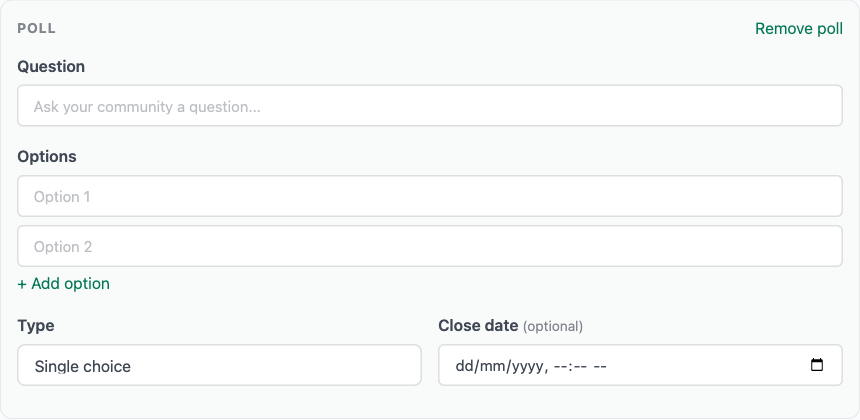 The poll is attached to the topic and saved together when you click Post. You cannot attach a poll to a reply - only to top-level topics.
Tip: You can add or remove a poll from an existing topic by editing the post. Removing a poll permanently deletes all votes cast on it.
How Members Vote
The poll appears below the post body, before any replies. Each option is displayed as a labeled button.
- Single choice - clicking an option records your vote immediately. You see the results as percentage bars as soon as you vote.
- Multiple choice - checkboxes appear. Select all the options you want and click Vote.
After voting, members can change their vote by clicking a different option. Clicking your current selection a second time removes your vote entirely.
Members who have not voted see the options. Members who have voted see the live results. This design keeps undecided members from being anchored by early results.
Reading Results
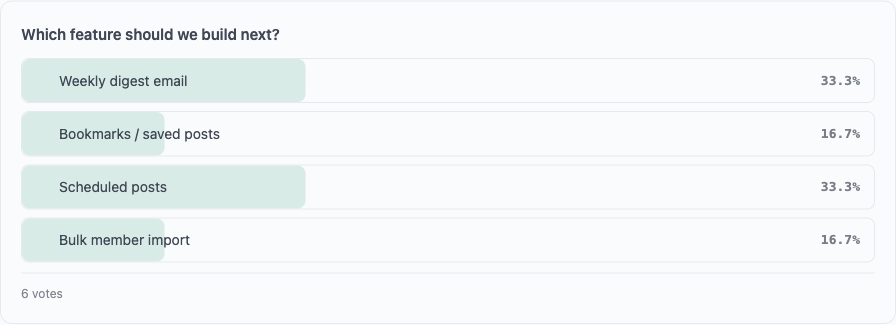
Results display as horizontal percentage bars with the option label, the percentage, and the raw vote count. Bars fill in proportion to the leading option.
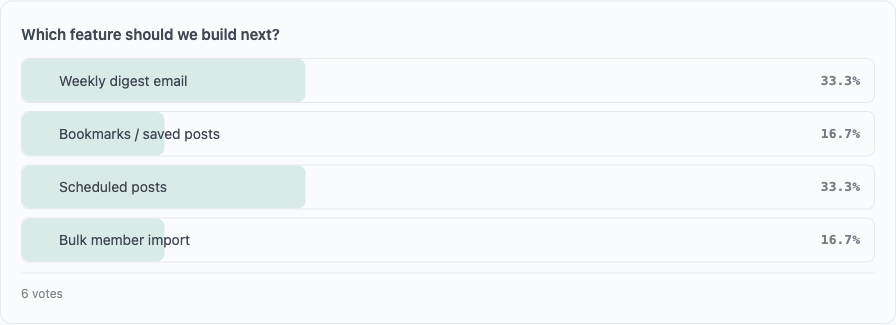 The total vote count appears below the bar chart. If the poll has a close date, a countdown shows how much time remains.
Closing a Poll
The topic author and any space moderator can close a poll at any time:
- Open the topic.
- Click the ··· menu on the poll card.
- Select Close Poll.
Once closed, the poll shows a Closed badge and no further votes are accepted. Existing results remain visible. A closed poll can be re-opened by the same users using the same menu.
Note: If you set a close date and later want to extend it, edit the post and update the date in the poll settings.
Multi-Select Voting
A poll is either single choice or multiple choice, set when you build it:
- Single choice records exactly one option per member. Voting for a different option moves the vote.
- Multiple choice lets each member pick several options at once. Each option toggles independently - a member can hold any number of selections, and clicking a chosen option a second time clears just that one.
Because of this, the total vote count on a multiple-choice poll can be higher than the number of voters - one member can contribute several votes.
Polls Admin
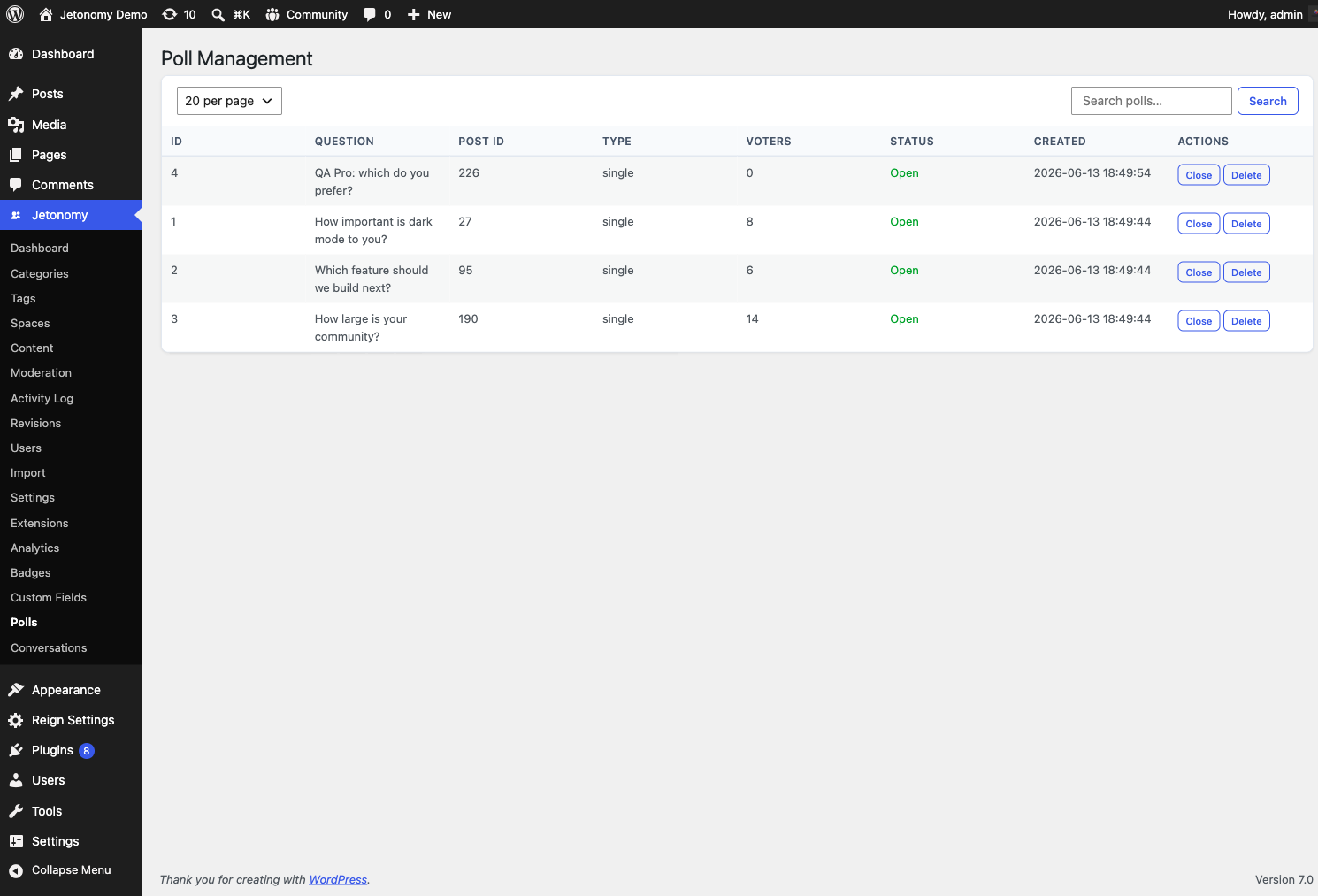
Enabling the extension adds a Polls submenu under the Jetonomy admin menu (jetonomy-pro-polls). It lists every poll in your community with its post, type, total votes, and close state, so you can review and close polls without opening each topic.
REST API
Polls registers these endpoints under jetonomy/v1:
| Method | Endpoint | Description |
|---|---|---|
POST |
/posts/{post_id}/poll |
Create a poll on a post |
GET |
/posts/{post_id}/poll |
Get a poll's options and live vote counts |
POST |
/polls/{id}/vote |
Cast a vote - pass option_id for single choice or option_ids (array) for multiple choice |
DELETE |
/polls/{id}/vote |
Remove your vote(s) from the poll |
PATCH |
/polls/{id} |
Update a poll (for example, change the close date) |
Creating a poll and voting require the member to be logged in; poll creation additionally requires the right to post in the target space. See the REST API reference for full request and response payloads.
What's Next?
Collect structured information about your members with custom profile fields.