

Embedding the Composer
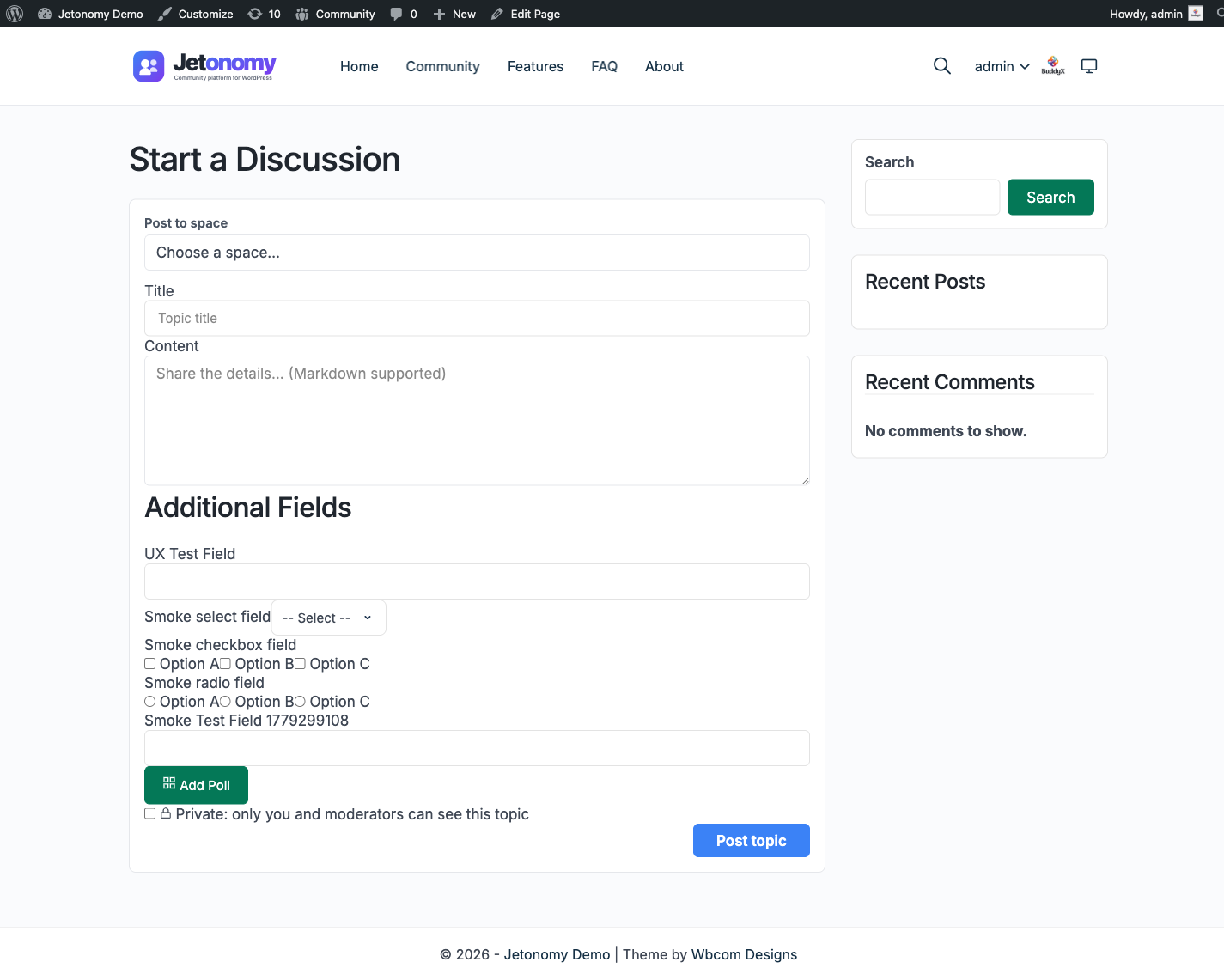
Free & ProMembers normally start a topic from inside a space. But you can also drop a "start a topic" box onto any WordPress page, post, or landing page - so a visitor can begin a discussion without first navigating into the community. Jetonomy gives you two ways to do this, and both produce the same box: a Gutenberg block and a shortcode.
What You Will Learn
- Where the embedded composer is useful
- How to add it with the Compose Topic block (Gutenberg)
- How to add it with the
[jetonomy_compose_topic]shortcode (Classic editor and page builders) - The difference between "picker" mode and "fixed" mode
- What logged-out visitors see
When to Use It
The embedded composer is handy when you want members to start a discussion from outside the community pages, for example:
- A "Ask the community" box on your homepage or a landing page
- A support page that drops members straight into your Support space
- A product page that invites feedback into an Ideas space
Adding It with the Block (Gutenberg)
- Edit any page or post in the WordPress block editor.
- Click the + (Add block) button.
- Search for Jetonomy Compose Topic and insert it.
- In the block sidebar, choose how the box behaves (see Picker vs Fixed Mode below).
- Publish or update the page.
Adding It with the Shortcode
If you use the Classic editor, a widget, or a page builder (Elementor, Divi, Bricks, WPBakery), use the shortcode instead. It produces an identical box.
[jetonomy_compose_topic mode="picker"]
[jetonomy_compose_topic mode="fixed" space_id="5"]
The block and the shortcode are interchangeable - either surface works and they render the same composer, so pick whichever fits your editor.
Picker vs Fixed Mode
The composer has two modes, set with the mode attribute (block sidebar control or shortcode attribute):
| Mode | What it does |
|---|---|
| Picker (default) | Shows a space dropdown so the member chooses which space their topic lands in. Only spaces where the member is allowed to post appear in the list. |
| Fixed | Locks the box to one space - no dropdown. Use this on a page that is clearly about a single topic area (e.g. a Support page that always posts into the Support space). Set the space with space_id (the Space ID to post into control in the block). |
If you choose Fixed mode but the space is missing or the member cannot post in it, the box quietly falls back to Picker mode rather than showing an error.
Limiting the Post Types
The types attribute controls which kinds of topic the box can create. By default it allows topic,question,idea. Remove any you do not want to offer on that page. (The actual post type a member ends up creating still follows the space type - see Creating Topics.)
What Logged-Out Visitors See
If a visitor is not signed in, the box does not show a form. Instead it shows a "Sign in to start a new topic" prompt that returns them to the same page after they log in. There is no exposed form for signed-out visitors, so you can safely place the composer on a public page.
Related
- Creating Topics - the full new-post composer, field by field
- Search & Filters - help members find existing discussions before they start a new one
- For the full attribute reference and developer details, see Shortcodes, Widgets & Blocks