

Creating Topics
Free & ProA topic is the primary unit of discussion in Jetonomy - every conversation, question, idea, or update starts here. This guide walks through everything that happens from the moment a member clicks "New Post" to when their topic goes live.
What You Will Learn
- How to open the new post form in a space
- Every field in the post composer and what it does
- How Markdown formatting works in the content editor
- How content moderation and rate limiting affect new members
- Whether posts publish immediately or wait for approval
Opening the New Post Form
Members can start a new topic in three ways:
- Navigate to a space and click the New Post button in the space header.
- Visit the direct URL:
/community/s/your-space-slug/new/ - Click + New from any page in the community - this opens a space picker first, then the form.
The new post form is always scoped to a specific space. If a member arrives via the generic + New button, they choose a space before the form loads. This ensures every topic lands in the right place.
If You Have Not Joined the Space (1.6.0)
Jetonomy checks that you are allowed to post before it loads the composer. If you open the new post page for a space you have not joined, you see a permission prompt up front instead of a blank composer:
- Open space you can join - a "Join [space]" prompt appears with a button that takes you back to the space to join. Once you are a member, open the new post page again and the composer loads.
- Restricted space you cannot join - a permission-denied message appears with a link back to the space.
This replaces the old behavior where you could write an entire post and only hit the wall when you tried to submit it. The gate runs first so you never lose a draft to a rejected submission.
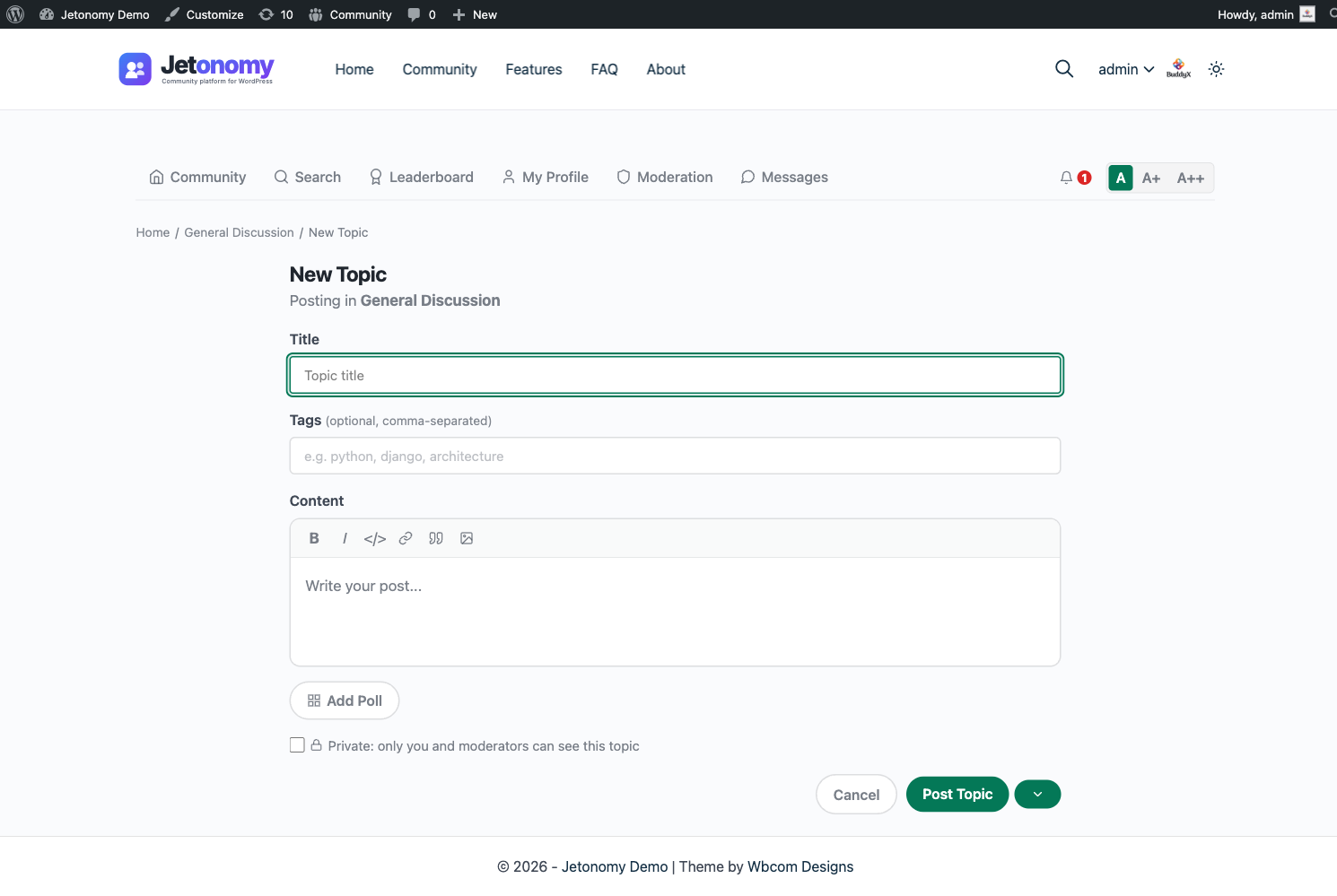
The Post Composer
Title
The title field is required for Forum, Q&A, and Ideas spaces. Write a clear, specific title that tells members exactly what the topic is about before they click it.
Good: "How do I set up automatic email digests for my space?" Weak: "Help with emails"
For Q&A spaces, phrase the title as a question - it helps other members find answers when searching.
The title field is optional for Social Feed spaces, where short-form posts without titles are common.
Content
The content field supports rich text via a Markdown toolbar. You do not need to know Markdown syntax - the toolbar buttons handle formatting for you.
Toolbar options:
| Button | What it does |
|---|---|
| B | Bold text |
| I | Italic text |
< > |
Inline code |
| Link | Insert a hyperlink |
| Quote | Block quote |
| Image | Upload an image from your device |
You can also type Markdown directly if you prefer:
**bold**→ bold*italic*→ italic`code`→code> quote→ block quote
Images are uploaded to the WordPress media library. Each image is inserted as a standard <img> tag in the content. There is no separate file attachment field - all media goes inline.
Tags
Add up to five tags to help members find your topic through search and tag filtering. Type a tag name and press Enter. Jetonomy auto-suggests existing tags as you type - reusing existing tags is better than creating near-duplicates.
Tags are space-scoped by default. A "bug" tag in your Support space and a "bug" tag in your Dev space are the same tag in the database, but the tag page at /community/tag/bug/ will show posts from all spaces.
Similar Topics Detection
As you type the title, Jetonomy searches for existing topics with similar titles in the current space and shows up to five matches inline below the title field. This is the single best defense against duplicate topics - most duplicates happen because the author simply did not know an existing topic already covered their question.
If you see your question already answered in the list, click the match to jump to the existing topic instead of submitting a duplicate. If none of the matches fit, keep typing - the search re-runs after every few characters.
Similar Topics detection runs a lightweight, debounced search request (about 400ms after you stop typing) against the server search index, so it does not reload the page.
Prefix Selector
If the space has topic prefixes enabled, a Prefix selector appears next to the title field. Pick a prefix (for example, Bug, Suggestion, Solved) from the list and it appears as a colored label in front of your topic in the space listing.
Prefixes are configured per space by the space owner - see the Topic Prefixes guide.
Private Topic Toggle
If your space allows it, a Private toggle appears at the bottom of the composer. Enabling it restricts the topic to you and space moderators only - other space members cannot see it. Use this for sensitive support issues, personal requests, or anything that should stay between you and the moderators.
Not every space allows private topics. If you do not see the toggle, the space owner has disabled the feature.
See Private Topics and Topic Prefixes for the full guide.
Post Type Is Derived Automatically
You do not select the post type - Jetonomy determines it from the space type:
| Space type | Post type |
|---|---|
| Forum | Discussion |
| Q&A | Question |
| Ideas | Idea |
| Social Feed | Update |
The composer adapts its UI accordingly. Q&A spaces show a hint to "phrase as a question." Ideas spaces show the Idea Status selector (visible to moderators). Social Feed spaces make the title optional and show a shorter, Twitter-style composer.
Content Moderation Checks
Before a post is saved, Jetonomy runs three checks:
Rate limiting - New members (Trust Level 0) can submit a maximum of 3 posts per day and 10 replies per day. If a member has hit their limit, the submit button shows an error and the post is not saved. Rate limits reset at midnight UTC. Members at Trust Level 1 and above have higher or no limits, depending on your global settings.
Require post approval - If the space has "Require Post Approval" enabled, the post is saved with a Pending status. It is not visible to other members until a moderator approves it. The submitter sees a confirmation: "Your post has been submitted and is awaiting approval."
Auto-moderation rules (Jetonomy Pro) - If Pro auto-moderation rules are configured, Jetonomy checks the content against those rules before saving. Depending on the rule configuration, the post may be flagged, held, blocked, or marked as spam automatically.
Note: WP Admins and space moderators bypass rate limiting and approval requirements. Their posts always publish immediately.
After Publishing
When a topic publishes successfully:
- It appears at the top of the space listing under the Latest sort.
- The author is automatically subscribed to the topic and will receive notifications for new replies.
- The space's post count increments immediately.
- Search indexes are updated on the next cron run (typically within a few minutes).
If the topic is pending approval, it does not appear in the listing, does not increment the post count, and the author's subscription is created but held until approval.
What's Next?
Learn how replies work, how threading is structured, and how to accept answers in Q&A spaces.
Related
- Embedding the Composer - drop a "start a topic" box onto any WordPress page, post, or landing page using the Compose Topic block or the
[jetonomy_compose_topic]shortcode. - You can also surface existing discussions on any page with the Forum Feed and Trending blocks (and their
[jetonomy_recent_posts]/[jetonomy_trending_posts]shortcodes) - see Shortcodes, Widgets & Blocks.
Related Pro Features
These Pro extensions add to the discussion experience: