

MasterStudy LMS
Connect MasterStudy LMS course enrollment to Jetonomy spaces - students get a dedicated discussion area when they enroll in a course.
PRO - This feature requires Jetonomy Pro.
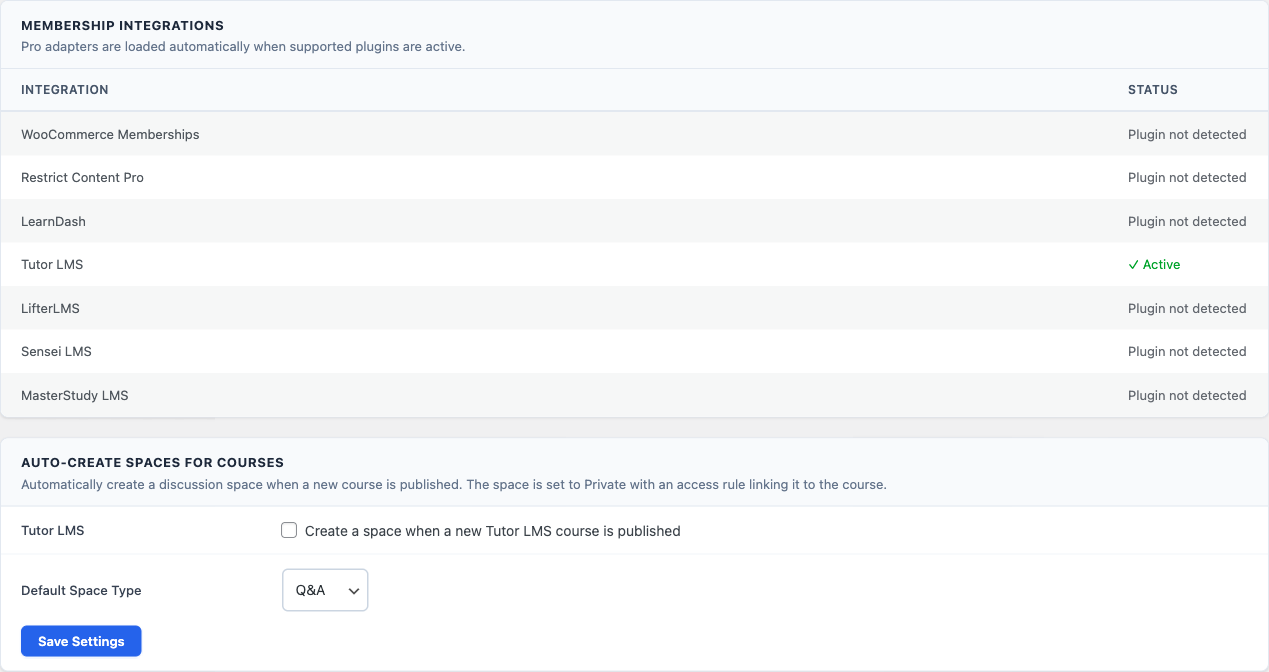
MasterStudy LMS works like the other LMS integrations for adding members. The course picker, the Sync Members button, and the Auto-Create card are shown in the LearnDash guide, which is the lead LMS reference for this section. (One difference: MasterStudy does not fire a removal hook - see Important Note on Removal below.)
What You Will Learn
- How to gate a space by MasterStudy LMS course enrollment
- How to auto-create spaces when new courses are published
- How to sync existing students into a space
How Detection Works
Jetonomy Pro detects MasterStudy LMS automatically when both plugins are active. A MasterStudy Course option appears in the Access Rules rule type dropdown.
Linking a Course to a Space
- Go to Jetonomy → Spaces → open the space → Access Rules tab.
- Select MasterStudy Course from the rule type dropdown.
- Start typing the course name - a searchable dropdown shows all published MasterStudy courses (see the course picker screenshot).
- Select the course, set the Access level to Participate.
- Click Add Rule.
For what each Access level means, see Access level.
Syncing Existing Students
Click the Sync Members button next to any rule to pull in all currently enrolled students. New enrollments sync automatically.
Auto-Create Spaces for New Courses
- Go to Jetonomy → Settings → Integrations.
- Enable the MasterStudy LMS toggle under Auto-Create Spaces for Courses.
- Choose the default space type and save.
When you publish a new MasterStudy course, a private space is created with the course name, an access rule, and the course author as space admin.
Enrollment Events
| MasterStudy LMS Event | Jetonomy Action |
|---|---|
| Student enrolls in course | Added to linked space as Member |
| Student completes course | Access retained |
Important Note on Removal
MasterStudy LMS does not fire a hook when students are removed from courses. This means automatic removal from linked spaces is not available. To manage access:
- Use the Sync Members button periodically to re-sync - students no longer enrolled will not be re-added
- Remove students manually from the space Members tab
- For subscription-based access, consider pairing MasterStudy with WooCommerce Memberships which does fire removal hooks
Troubleshooting
MasterStudy Course does not appear in dropdown - Confirm Jetonomy Pro and MasterStudy LMS are both active. Check Jetonomy → Settings → Integrations.
Students remain in space after course access revoked - MasterStudy does not fire removal hooks. Remove students manually from the space Members tab or use the Sync Members button to verify current enrollment.