

Permissions
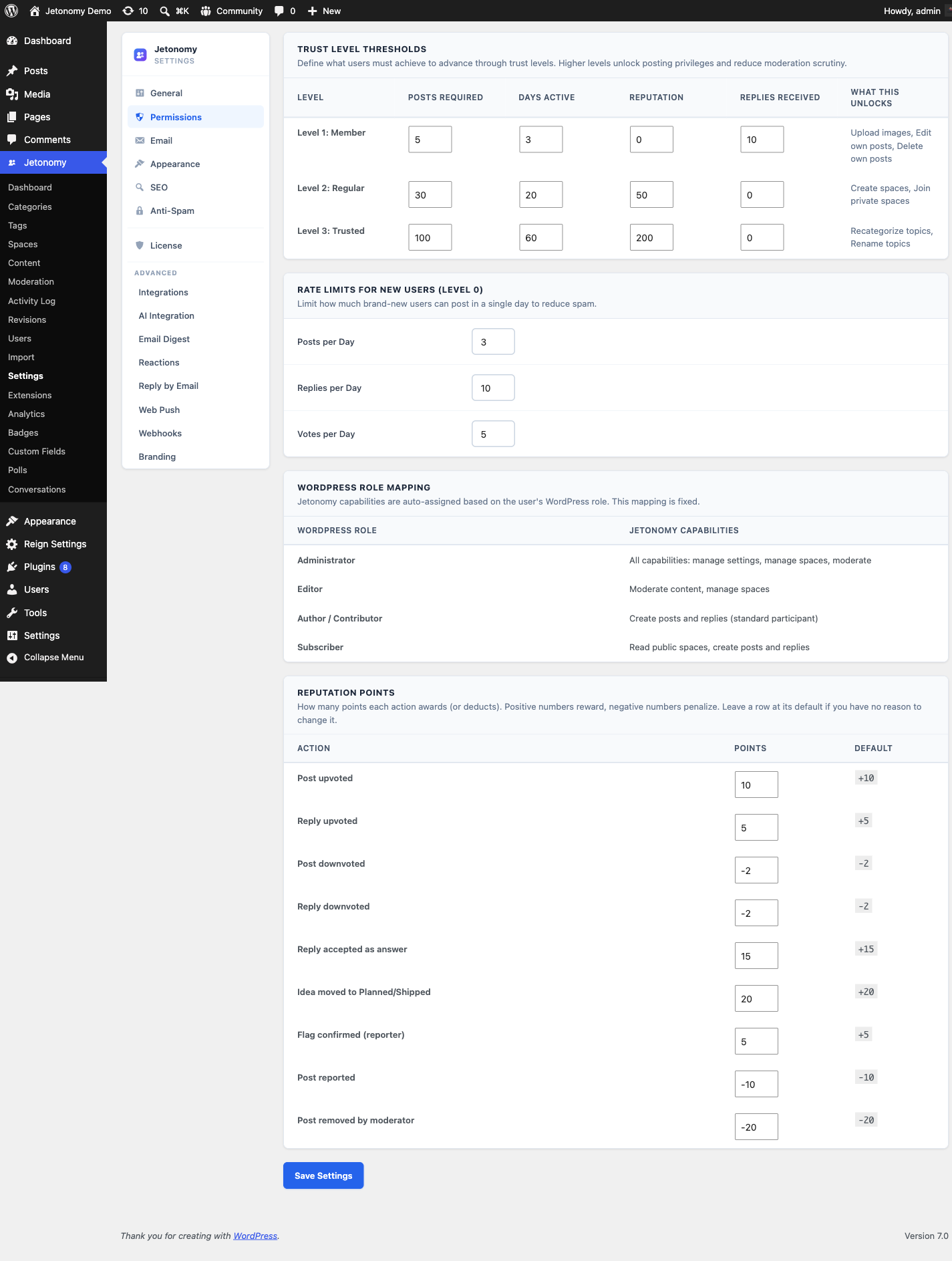
The Permissions tab controls how quickly members earn trust in your community and how much they can do before you have had a chance to evaluate their behavior.
What You Will Learn
- What Jetonomy's trust level system is and how it auto-promotes members
- How to configure the thresholds for each trust level
- What each trust level unlocks
- How to adjust rate limits to match your community's size and risk tolerance
Go to Jetonomy → Settings → Permissions to access these settings.
The Trust Level System
Jetonomy uses six trust levels (0 through 5) to gradually extend posting privileges to members as they demonstrate good behavior. Levels 0 through 3 are earned automatically by the background cron job. Levels 4 and 5 are granted manually by moderators or admins.
| Level | Name | Earned By |
|---|---|---|
| 0 | Newcomer | Default on registration |
| 1 | Member | Automatic - light activity |
| 2 | Regular | Automatic - consistent participation |
| 3 | Trusted | Automatic - high engagement and reputation |
| 4 | Leader | Manual - granted by moderator or admin |
| 5 | Moderator | Manual - granted by admin only |
The cron job runs every 12 hours and re-evaluates every member against the configured thresholds. Demotion is also possible - if a member is muted or receives too many spam flags, their trust level can drop.
Trust Level Thresholds
Setting: trust_thresholds
Location: Permissions tab → Trust Levels section
Each auto-promotion level (1, 2, and 3) has a configurable set of thresholds. A member must meet all thresholds for a level to be promoted to it.
| Threshold | Description | Configurable |
|---|---|---|
posts |
Minimum posts created | Yes |
days_active |
Minimum days since registration | Yes |
reputation |
Minimum reputation score | Yes |
replies_received |
Minimum replies received on own posts | Yes |
Default thresholds (Level 1):
| Threshold | Default Value |
|---|---|
posts |
5 |
days_active |
3 |
reputation |
0 |
replies_received |
10 |
For small communities (under 200 members), lower the thresholds. Members can feel stuck if Level 1 requirements take weeks to meet. For larger communities, raise the thresholds to protect against spam waves.
Tip: Start with low thresholds and tighten them if you see abuse. It is easier to tighten later than to manually promote members who are stuck at Level 0.
What Each Trust Level Unlocks
| Ability | Level Required |
|---|---|
| Read public spaces | 0 (any visitor) |
| Create posts | 0 |
| Reply to posts | 0 |
| Add images to posts | 1 |
| Include external links | 1 |
| Use @mentions | 1 |
| Follow spaces | 0 |
| Vote on posts and replies | 0 |
| Flag content for moderation | 1 |
| Edit own posts | 0 |
| Delete own posts | 1 |
| Access invite links | 1 |
| Create invite links | 2 |
| Skip anti-spam checks | 2 |
| Moderate content (space moderator) | Assigned by admin |
Note: The anti-spam exemption at Level 2 is important. Members who have earned Level 2 are trusted enough to skip reCAPTCHA and Turnstile checks entirely. This keeps the experience smooth for your most active members.
Rate Limits
Setting: rate_limits
Location: Permissions tab → Rate Limits section
Rate limits cap how many actions a member can take in a given time window. They protect your community from spam bursts and accidental double-submissions.
| Action | Default Limit | Window |
|---|---|---|
| Create post | 3 | per day |
| Create reply | 10 | per day |
| Vote | 5 | per day |
Trust Level 1+ members are exempt from all rate limits.
For high-traffic communities, raise these limits. For communities experiencing spam problems, lower them. Changes take effect immediately - no cache flush needed.
Adjusting for Community Size
Small community (under 500 members):
- Lower all trust thresholds significantly - active members should reach Level 2 within a week
- Keep rate limits at defaults - spam volume is low
- Consider setting
days_activeto 0 for Level 1 to avoid frustrating early adopters
Large community (10,000+ members):
- Keep thresholds at defaults or raise them - organic promotion still happens, just slower
- Raise the
reputationandpoststhresholds to make higher levels harder to reach - Lower post rate limits if you see spam bursts
Reputation Points
Setting: jetonomy_settings['reputation_points']
Location: Permissions tab → Reputation Points section
Every community action awards or deducts a fixed number of reputation points. You can override any default value on this screen. Positive numbers reward the action; negative numbers penalize it.
| Action key | Label | Default |
|---|---|---|
post_upvoted |
Post upvoted | +10 |
reply_upvoted |
Reply upvoted | +5 |
post_downvoted |
Post downvoted | -2 |
reply_downvoted |
Reply downvoted | -2 |
reply_accepted |
Reply accepted as answer | +15 |
idea_planned |
Idea moved to Planned/Shipped | +20 |
flag_validated |
Flag confirmed (reporter) | +5 |
post_reported |
Post reported | -10 |
post_removed |
Post removed by moderator | -20 |
The Default column shows each value before any override is saved. You can restore a row to its default by deleting your override and saving again.
Lookup order at runtime: saved admin override in jetonomy_settings['reputation_points'] → hardcoded defaults above → 0. This means a site with no overrides still scores correctly out of the box.
Developer hook: jetonomy_reputation_points_for
add_filter( 'jetonomy_reputation_points_for', function( int $points, string $action ): int {
    // Double the reward for replies accepted as answers.
    if ( 'reply_accepted' === $action ) {
        return $points * 2;
    }
    return $points;
}, 10, 2 );
The filter runs after the admin override and hardcoded fallback resolve, so $points already reflects any per-site override. Return an int.
What's Next?
Configure which notification types are enabled by default and set your community email identity.