

Replies & Threading
Free & ProReplies are where conversations happen. Jetonomy's reply system supports threaded discussions, multiple sort orders, accepted answers in Q&A spaces, and efficient loading for threads with hundreds of contributions.
What You Will Learn
- How to add a reply to a topic
- How threaded replies work and how deep they go
- How to sort replies and what each sort does
- How accepted answers work in Q&A spaces
- How to edit your own replies
- How Jetonomy handles large threads efficiently
The Reply Composer
The reply composer appears at the bottom of every topic page. Click into the text area to expand the full Markdown toolbar - the same formatting options available in the post composer (bold, italic, inline code, links, block quotes, image upload, code blocks).
Click Reply to submit. A new top-level reply is added in place without a page reload. A threaded sub-reply (a reply to another reply) reloads the page so it slots into the right position under its parent.
If the space has "Require Post Approval" enabled, your reply is held for moderator review before appearing to other members. A confirmation message tells you it is pending.
Quote Replies
To reply while quoting a specific passage from an existing reply, select the text you want to quote and click the Quote button that appears. Jetonomy inserts the quoted text as a styled blockquote in your reply composer, with the author attribution linked back to the source reply.
You can also click Quote in the ... menu on any reply to quote its full body without selecting text first. This is the quickest way to address a specific point from a long reply - the quoted passage gives readers the context without forcing them to scroll back up.
Threading: Replies to Replies
You can reply to any existing reply by clicking the Reply link that appears when you hover over a reply. This creates a threaded sub-reply nested visually under the parent.
Jetonomy supports three levels of nesting:
Reply (level 1)
  └─ Reply to reply (level 2)
       └─ Reply to reply to reply (level 3)
At level 3, no further nesting is allowed. Members can still reply to a level-3 comment - that reply is added at level 3 as well, keeping the conversation readable.
Threaded replies let you have multiple parallel conversations inside the same topic without them colliding. A question inside a reply gets its own sub-thread. The main discussion continues underneath.
Sorting Replies
Use the sort controls at the top of the reply list to change the order:
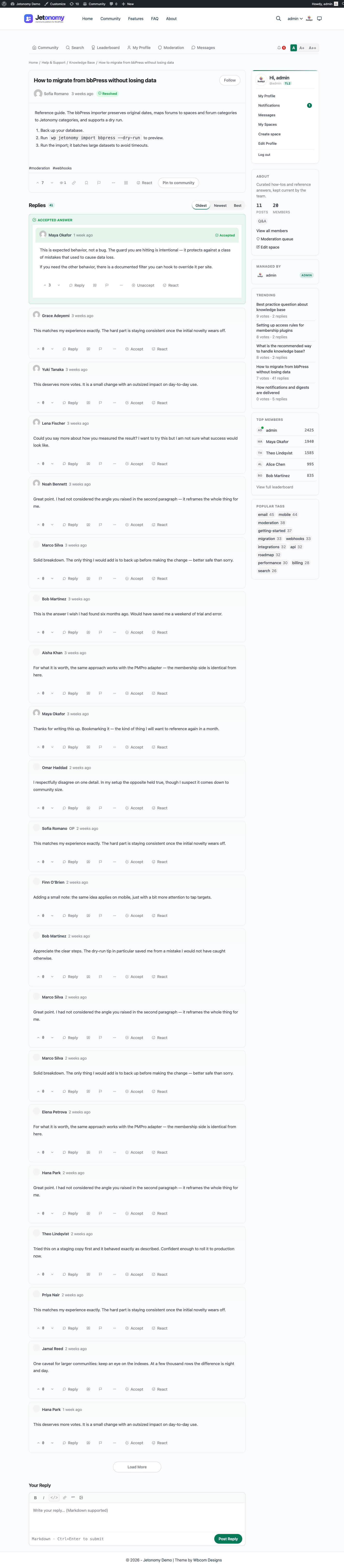
Oldest first - Replies appear in chronological order, oldest at the top. Best for reading a long discussion from the beginning. This is the default for Forum spaces.
Newest first - Most recent replies appear at the top. Best for active topics where you want to see the latest contributions without scrolling.
Best - Replies are ranked by net vote score (upvotes minus downvotes), highest at the top. Best for Q&A spaces or any topic where you want the most useful contributions visible first. Within the same vote score, older replies rank first.
Sort preference is stored per-session - if you change it on one topic, it persists as you navigate between topics in the same session.
Note: "Best" is the vote-ranked sort for replies inside a topic. The space topic listing uses a similarly named vote-ranked sort called Popular (see Voting & Reputation). Both rank by net vote score - they are simply labelled differently because one orders replies and the other orders topics.
Accepted Answers in Q&A Spaces
In Q&A spaces, the person who asked the question (the topic author) decides which reply is the accepted answer. This signals to everyone else that the question has been solved and surfaces the winning reply at the top of the thread.
Marking an Answer as Accepted
As the asker, you are the one who confirms which reply actually solved your problem:
- Open your own question. You must be the post author (space moderators and admins can also accept on your behalf, see below).
- Find the reply that best answers your question.
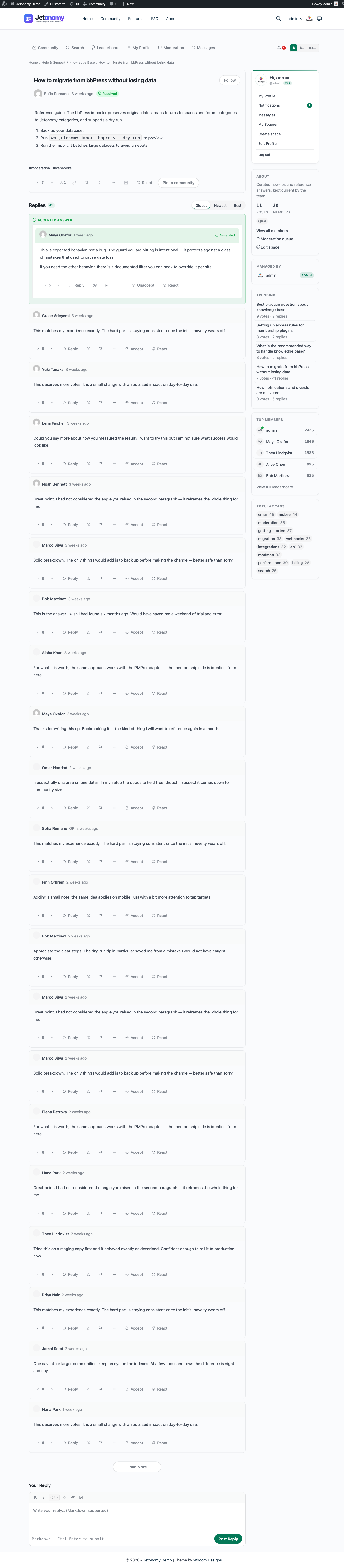
- Click the Accept button, the checkmark icon shown below the reply, on each reply in a Q&A space.
- The reply is immediately pinned to the top of the reply list, above all other replies and regardless of the current sort order.
What changes the moment you accept:
- The reply gets a green Accepted tag and the whole thread is marked as resolved.
- An "Accepted answer" callout box appears at the top of the topic, so anyone landing on the question sees the solution first without scrolling.
- The reply's author receives a notification and a reputation bonus (a default of +15; you do not earn reputation for accepting your own reply). The bonus amount is admin-configurable under Settings → Permissions → Reputation Points.
Changing or Removing the Accepted Answer
The acceptance is never locked in. As the asker you stay in control:
- Switch answers: Click Accept on a different reply. The previous reply automatically loses its accepted status, so there is only ever one accepted answer at a time.
- Unaccept entirely: On the currently accepted reply, click the Unaccept button (the x-circle icon). This clears the accepted answer, returns the question to the unresolved state, removes the callout, and revokes the reputation that was awarded when it was accepted, so trust scores stay honest.
Tip: Space moderators (and admins) can also accept or unaccept answers on any Q&A topic in their space, useful for resolving questions on behalf of an asker who never came back to mark a solution.
Editing Your Own Replies
Click the ... menu on any reply you authored and select Edit. The reply text becomes an inline editor - you make changes and click Save. No page reload.
Edits are tracked as revisions internally. Moderators can view reply revision history from the moderation panel.
You can edit a reply at any time after posting. There is no edit window.
If a moderator edits your reply, the reply gets an "Edited by moderator" label.
How Jetonomy Handles Large Threads
For topics with many replies, Jetonomy loads replies in batches using indexed LIMIT/OFFSET pagination. Only the page you are viewing is queried, so a thread with hundreds of replies costs the same as a short one to open.
The first time you open a topic, you see the first batch of top-level replies (default: 20). A Load more replies button appears at the bottom if more exist. Clicking it loads the next batch without reloading the page.
For very high-traffic topics - those with hundreds of top-level replies - Jetonomy uses a smart loading strategy: it loads the first 10 replies and the last 10 replies, with a collapsed gap in the middle showing how many replies are hidden. You can click the gap to load replies from that range.
Threaded sub-replies follow the same pattern. A thread deeper than a few replies shows a "Show X more replies" link inline.
Note: New reply notifications appear as a sticky banner at the bottom of the page when other members post while you are reading. Click the banner to load the new replies without losing your scroll position.
What's Next?
Learn how upvotes and downvotes work, how they affect reputation, and how they power the Popular sort and trending sidebar.