

Invite Your First Members
How-To GuidesUse this guide to bring your first people into a space. You will choose how people join, share an invite link, add people yourself, and approve requests. It works the same on free and Pro.
What you will set up#
- A join policy for your space: Open, Requires Approval or Invite Only
- A shareable invite link with an optional limit and expiry date
- A routine for approving join requests
Before you start#
- You have a space. If not, see Your First Community.
- Your email works, so people get join and approval emails. Check with Jetonomy → Settings → Email → Send Test Email.
- You are an administrator, or the space admin. Space moderators can approve requests but cannot create invite links.
- You have a second browser window to try the link as a new person.
Step 1: Choose how people join#
- Go to Jetonomy → Spaces and click Edit under the space.
- On the General tab, set Join Policy:
| Policy | What happens |
|---|---|
| Open | A signed-in person clicks Join Space and is in at once |
| Requires Approval | They click Join and wait for you to approve |
| Invite Only | There is no join button. People need an invite link |
- Click Update Space.
A Hidden space is always Invite Only. An invite link works with any policy. Only Invite Only makes it the single way in.
Step 2: Create an invite link#
You can do this from the community side or from wp-admin.
On the community side:
- Open the space and click the Members tab.
- Find the Invite links panel. Only space admins see it.
- Set Max uses.
0means unlimited. - Set Expires, or leave it blank for no expiry.
- Click Generate invite link.
- Click Copy and share the link anywhere: email, chat or social media.
In wp-admin: open Jetonomy → Spaces → Edit → Members and use the Invite Links section, which has the same fields and a table of links.
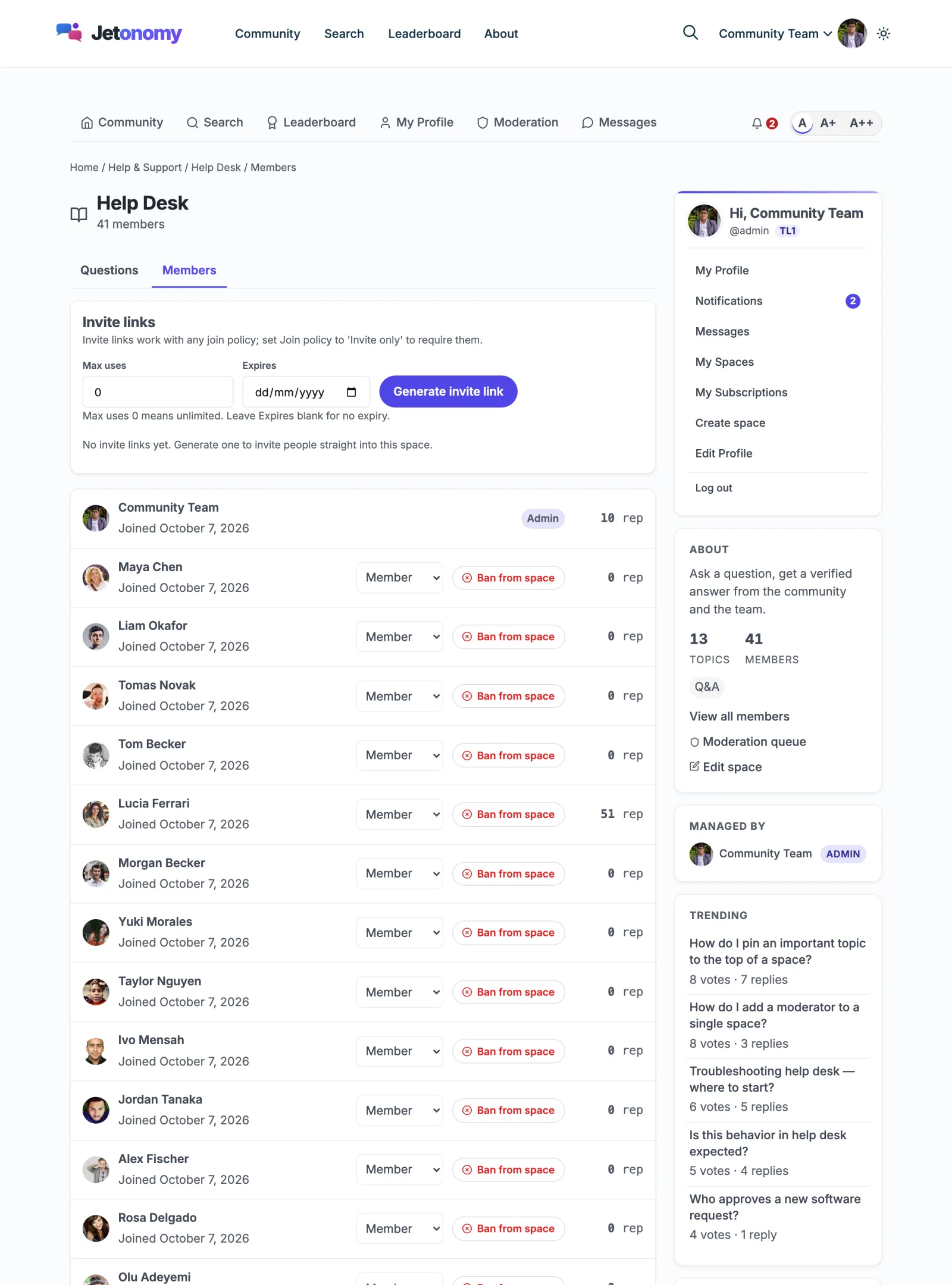
Each link lists Uses and Expires. A link that has run out is marked No longer works. Click Revoke to cancel one early. Anyone still holding it will not be able to join.
Step 3: What the invited person sees#
- They open the link.
- If they are signed out, they see "You've been invited to join" and the space name.
- They click Create free account or Log in to accept invite. The sign-up button shows only when Anyone can register is on under WordPress Settings → General.
- After signing in, they land in the space as a Member.
Note: If your whole community is private, guests are sent to the WordPress login page first. After login, the link brings them back. See Run a Members-Only Community.
Step 4: Add people yourself (optional)#
- Edit the space and open the Members tab.
- Under Add Member, type a name or email in the search box and pick the person.
- Choose a role: Member, Moderator, Admin or Viewer.
- Click Add.
The person must already have an account. Jetonomy does not send invitation emails. You share the link yourself.
Step 5: Approve join requests#
With Requires Approval, you and the space moderators are notified when someone asks to join. The requester can add a note under "Optional: why do you want to join?".
In wp-admin:
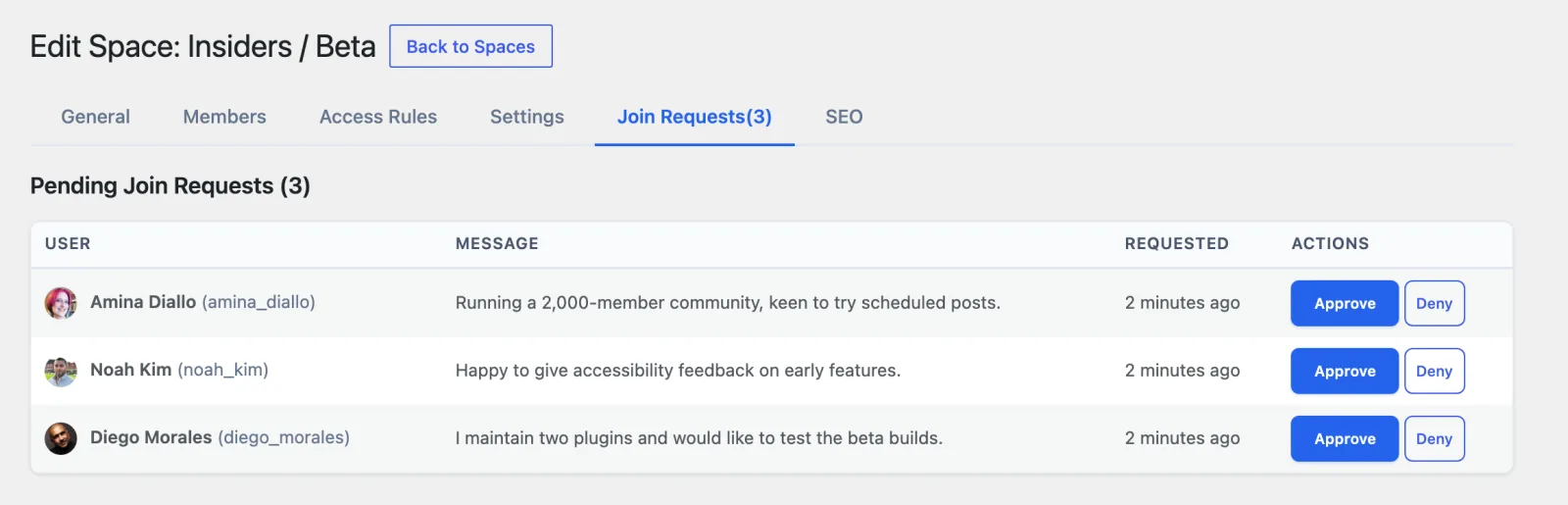
- Edit the space and open the Join Requests tab. It appears only when the policy is Requires Approval or requests are waiting.
- Read the Message, then click Approve or Deny.
On the community side: open the space Members tab and use the Pending join requests panel. It has the same Approve and Deny buttons, so moderators do not need wp-admin.
The requester is told the result. Approved people can post straight away.
Check that it works#
- In a private window, open your invite link. You should see the invitation page.
- Sign in as a test account. You should land in the space.
- Open the space Members tab as admin. The test account is listed, and the link's Uses count went up by one.
- For approval spaces, request access from another test account. The request shows under Join Requests. Approve it and confirm the account can post.
Common questions#
Can a moderator create invite links? No. Invite links are a way into a space, so only space admins and site administrators can see or create them.
Can I limit a link to one person?
Set Max uses to 1. It stops working after one person joins.
Does a link work after I switch the policy? Yes. It still admits people, whatever the policy. Revoke it if you no longer want that.
Can I invite someone by email address? Jetonomy does not send invitations by email. Copy the link and send it yourself.