

Banning Members
Approving, marking as spam, and trashing all act on a single piece of content. Banning acts on the person. When a member is not just posting one bad item but is repeatedly disruptive - or is a confirmed bad actor - you ban the account so they cannot keep posting. This guide covers the three ban types, how long a ban lasts, and where to manage bans.
What You Will Learn
- Where to ban and unban members
- The three ban types and when to use each
- How ban durations work, including automatic expiry
- How to lift a ban early
- Who is allowed to ban members
Where to Manage Bans
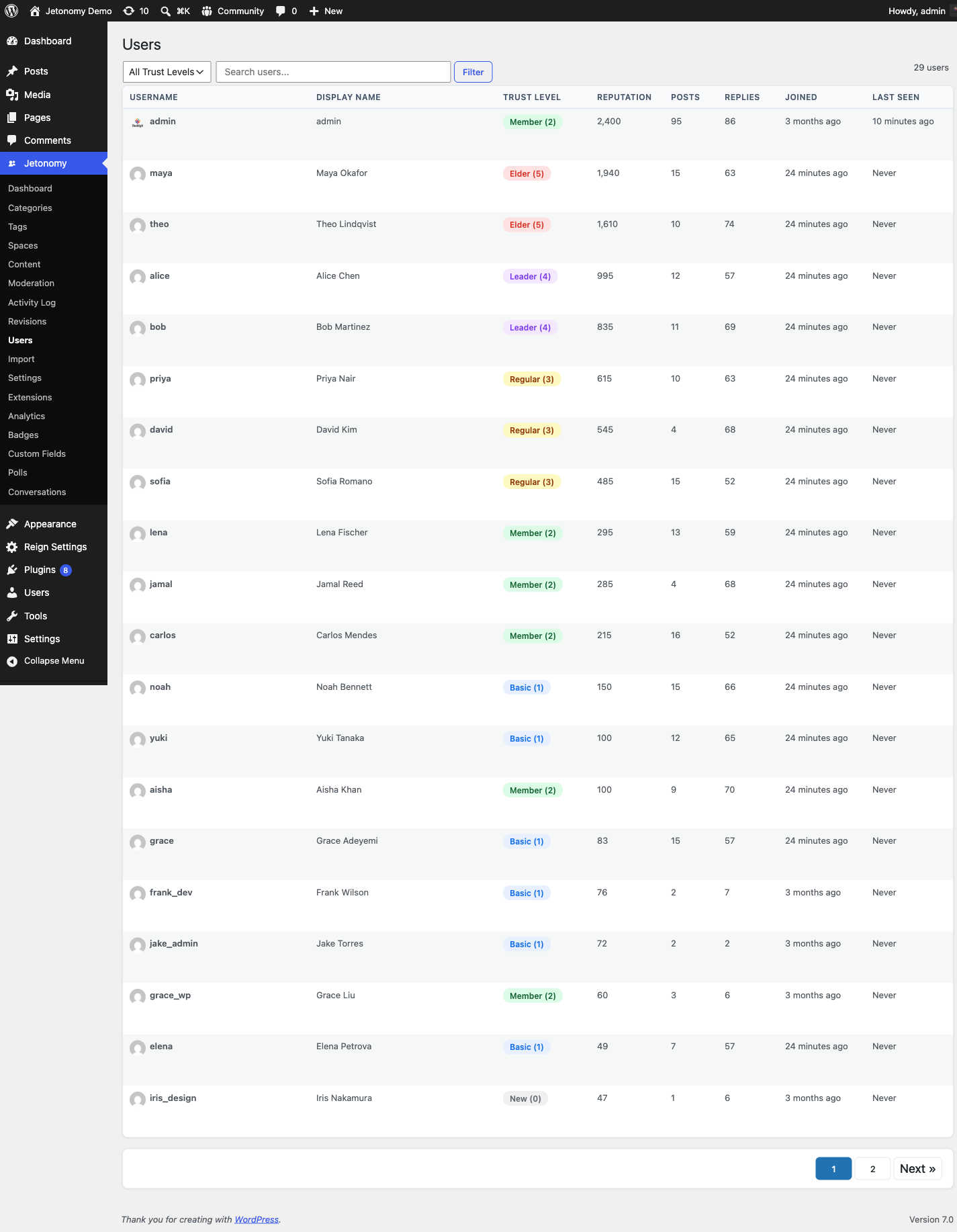
You ban and unban members from the Jetonomy → Users page in the WordPress admin. The page lists every community member with their trust level and stats, and gives each row a Ban / Unban control (plus a quick Silence link). Currently banned members also appear on the Banned Users tab of the Moderation Queue, where you can lift each ban.
Banning requires the jetonomy_moderate capability - the same capability that gates the moderation queue itself. WordPress administrators and Trust Level 4+ members have it by default.
The Ban Dialog
Clicking Ban on a member's row opens the Ban User dialog with three choices:
Ban Types
Jetonomy supports three levels of restriction so the response fits the situation:
| Type | Effect |
|---|---|
| Global Ban | The member is blocked from posting anywhere in the community |
| Space Ban | The member is blocked from a single space but can still participate elsewhere |
| Silence | The member can still read everything but cannot post or reply anywhere |
Tip: The Silence quick-link on each user row opens this same dialog pre-set to the Silence type with a 7-day duration - a fast way to cool down a heated member without a full ban.
Duration
Pick how long the ban lasts from the Duration selector:
| Duration | Effect |
|---|---|
| Permanent | The ban stays in place until you lift it manually |
| 1 Day | Lifts automatically 1 day after it is applied |
| 7 Days | Lifts automatically 7 days after it is applied |
| 30 Days | Lifts automatically 30 days after it is applied |
Time-limited bans lift themselves automatically when they expire, so you do not have to remember to unban a member after a cooling-off period.
Reason
The dialog has an optional Reason field. The reason is stored with the ban for your own records - it does not change how the ban behaves. Recording why you banned someone makes it easy for you or another moderator to understand the history later.
Bans Apply to the API and the App Too
A ban is not just a front-end block. Jetonomy checks account status on every REST write - creating posts and replies, voting, registering a push device, and every other mutation - so a banned member is rejected no matter how they connect. That includes Application Password and mobile-app sessions, which authenticate outside the normal WordPress login flow. A banned account cannot post around the ban by switching to the app or calling the API directly; the write is refused with a "banned" error before anything is saved.
The same gate also stops members who have not confirmed their email (pending verification) from writing through the API until they finish signing up.
Lifting a Ban Early
To remove a ban before it expires, click Unban on the member's row (on the Users page or the Banned Users tab). The restriction is cleared and the member can participate again immediately.
When to Ban vs. Act on Content
Reach for a ban only when content-level actions are not enough:
- A single bad post - use Trash or Mark as Spam from the Moderation Queue.
- A member causing trouble in one space - use a Space Ban so they keep their access elsewhere.
- A member you want to cool down, not remove - use Silence (they can still read).
- A member who keeps coming back - use a Global Ban, permanent or timed, to stop the behavior at the source.
What's Next?
Learn how in-app notifications keep your members engaged and informed about replies, mentions, and votes.