

Import from bbPress
Move your existing bbPress community into Jetonomy - forums, topics, replies and user data - using the built-in importer.
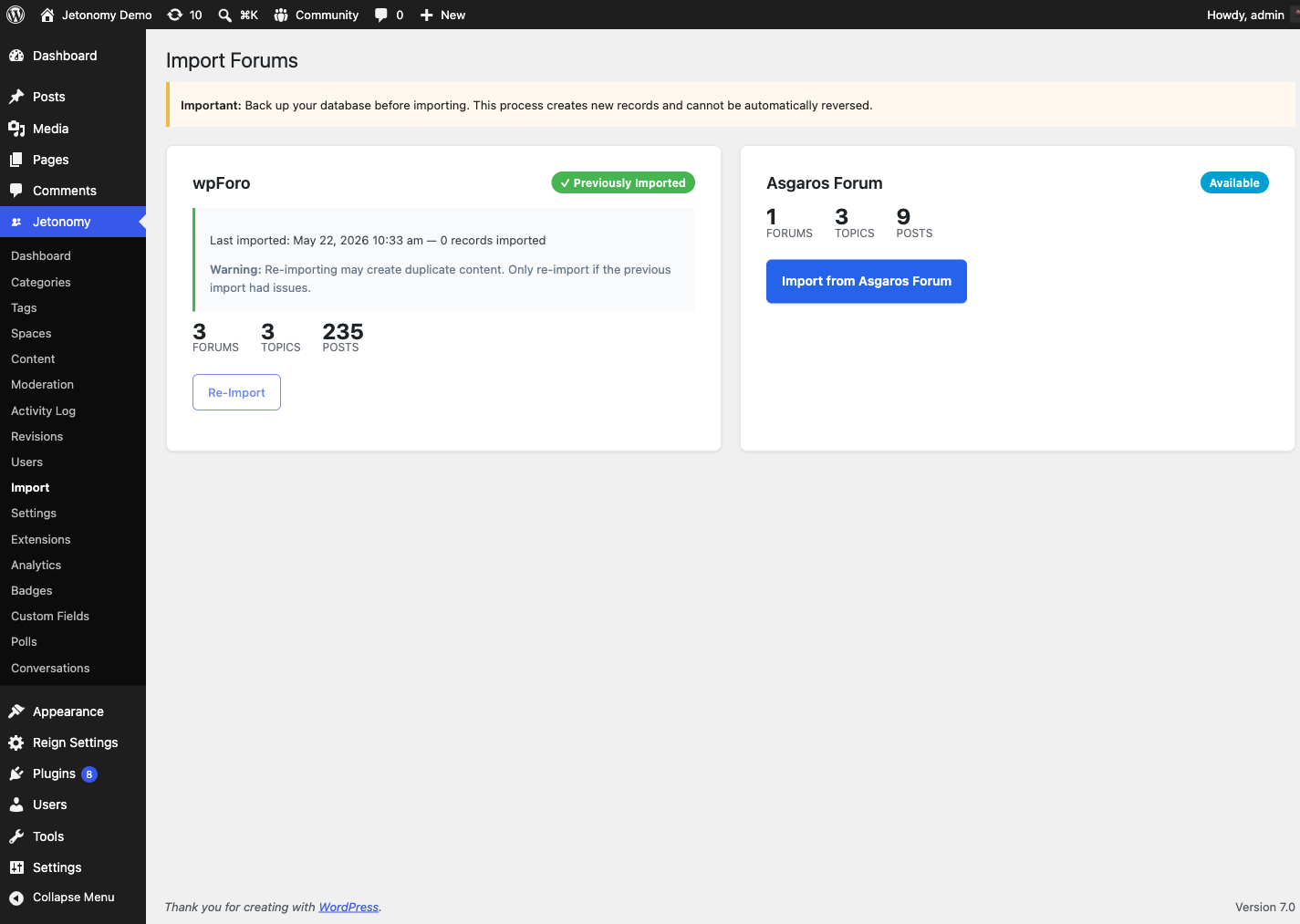
New to migration? Read the Migration overview first - it explains how to read the import screen (stat previews, status badges, the progress tracker) and the backup rule that applies to every import.
What You Will Learn
- What data the bbPress importer brings over and what it leaves behind
- How to prepare your site before running the import
- How to start the import, monitor progress, and resume if it stops
- How to use the CLI dry-run option to validate before writing data
- What to verify after the import completes
What Gets Imported
| bbPress Data | Imported As | Notes |
|---|---|---|
| Forums | Jetonomy Spaces | Forum description → space description |
| Topics | Jetonomy Posts | Topic title + content preserved |
| Replies | Jetonomy Replies | Imported as flat replies on the post (bbPress reply threading is flattened) |
| User accounts | Linked to existing WP users | Matched by user ID |
| Sticky topics | Pinned posts | Preserved |
| Closed topics | Closed posts | Preserved - the thread stays readable and takes no new replies |
| Private and hidden forums | Private and hidden spaces | Visibility is carried across, so a staff-only forum does not become public |
| Inline images and attached files (1.8.0+) | WordPress media library + Jetonomy attachments | Downloaded from bbPress and re-registered as attachments; images stay inline, other files show as a download link |
Not imported:
- bbPress topic tags
- bbPress user activity counts / reputation
- bbPress votes (no standard bbPress vote data is read)
- Forum moderator assignments (assign Space Moderator roles manually after import)
- bbPress subscriptions (replaced by Jetonomy follow/subscribe)
- bbPress private messages (import to Jetonomy Pro private messaging separately)
- Custom bbPress meta fields (use the
jetonomy_importersfilter to extend) - Forum avatars (WordPress avatars carry over via Gravatar/WP user accounts)
Attachments (1.8.0+): If a file cannot be recovered - for example it is already missing from disk - the import still completes and tells you how many files it could not bring over ("N files could not be recovered and were left linked in the original post text"). That is a warning to check a handful of posts by hand, not a failed import. See the Migration overview for details.
Re-running an import is safe. The importer skips anything it has already brought over, matching forums and topics on their slug and replies on their author and original timestamp, so a second run adds only what is missing. If you migrated on a version before 2.0.0, closed topics and private/hidden forums were skipped - re-running the import now brings them in without duplicating what is already there.
What to do about the gaps: Jetonomy replies are flat by design - every reply attaches to the topic, not to another reply - so the conversation stays intact even though bbPress's nested threading is not carried over. Topic tags are not imported; if tags matter to you, re-tag your highest-value topics by hand after the import (it is usually a small number that drive most of the traffic).
Pre-Import Checklist
Complete these steps before starting the import:
- Back up your database. The importer does not modify bbPress tables, but a backup is essential.
- Activate Jetonomy and complete the setup wizard. Your community base URL should be set.
- Keep bbPress active during the import. The importer reads directly from bbPress tables.
- Set your server timeout high. Large imports (100,000+ records) take time. Increase
max_execution_timeinphp.inior use WP-CLI (recommended for large sites). - Disable other heavy plugins during import if your server is resource-constrained.
Tip: For large communities (10,000+ topics), run the import via WP-CLI to avoid browser timeouts entirely. See the WP-CLI section below.
Running the Import
- Go to Jetonomy → Import in your WordPress admin.
- Select bbPress as the source.
- Click Start Import.
The importer processes records in batches of 500. A progress bar shows completion percentage, current batch, and estimated time remaining.
Do not close the browser tab while the import is running. If the page refreshes or you navigate away, the import will pause - but can be resumed (see below).
Dry-Run Mode
Dry-run mode is available via WP-CLI only (--dry-run). It runs the import logic without writing any data and reports the imported / skipped / error totals it would have produced:
wp jetonomy import bbpress --dry-run
The summary line looks like [DRY RUN] Import complete. Imported: 1240, Skipped: 12, Errors: 0. No database writes are made, so you can run it as many times as you need.
Estimated Import Times
| Community Size | Topics + Replies | Estimated Time |
|---|---|---|
| Small | Under 10,000 | 2 - 5 minutes |
| Medium | 10,000 - 100,000 | 10 - 40 minutes |
| Large | 100,000 - 500,000 | 1 - 4 hours |
| Very large | 500,000+ | Use WP-CLI |
These are estimates for a typical shared hosting server. Dedicated servers will be significantly faster.
Resuming a Paused Import
If the import stops (browser closed, timeout, server restart), return to Jetonomy → Import. The card shows an Import Interrupted badge with the phase it stopped at. Click Resume Import to continue from the last completed batch, or Start Over to begin again from scratch.
You can safely resume multiple times. Records that were already imported are skipped.
Running via WP-CLI
For large communities, WP-CLI is more reliable than the browser-based importer. Run it from your server's command line (SSH); on most managed hosts you point it at the WordPress install with --path. The valid source value is bbpress (lowercase) - if you mistype it, the command lists the sources it recognizes.
wp --path="/path/to/wordpress" jetonomy import bbpress
The only flag is --dry-run:
# Dry run - validate and count without writing any data
wp jetonomy import bbpress --dry-run
WP-CLI runs without a browser timeout limit and prints an Imported / Skipped / Errors summary when the import finishes.
Post-Import Checklist
After the import completes, verify the following:
- Navigate to your community home - spaces should match your old bbPress forums
- Open several posts and confirm content and replies are intact
- Check that user profiles show post counts
- Assign Space Moderator roles to your former forum moderators (moderator assignments are not imported)
- Test creating a new post as a regular user
- If new spaces return a 404, visit Jetonomy → Settings → Permalinks and click Save to flush rewrite rules (normally done automatically on import completion)
- If you used bbPress shortcodes on pages, remove or replace them - they will output raw shortcode text now that bbPress is still active
Note: After a successful import, you can deactivate bbPress. Your community data is now in Jetonomy's tables and bbPress is no longer needed.
Re-running an Import
Once bbPress has been imported, its card on Jetonomy → Import changes to a Previously Imported badge that shows the date of the last import and how many records it brought over. The Start button becomes Re-Import, and Jetonomy warns you before you proceed because re-importing creates duplicate content - it does not detect and skip what you already imported. Only re-import if the first import had a real problem; otherwise leave it alone.
What's Next?
Migrating from wpForo? The process is similar with a few wpForo-specific field mappings.