

Flagging and Reporting
Flagging lets any logged-in member report content that breaks your community rules. It is the first step in the moderation pipeline - members surface problems, and your moderators review and act.
What You Will Learn
- How to flag a topic or reply
- How to report an entire member account
- How to block a member, and which surfaces you can do it from
- The difference between blocking a member and blocking a conversation
- What information a flag captures
- What the reason categories mean and where they come from
- Who can flag content and what the restrictions are
- What happens to flagged content before a moderator reviews it
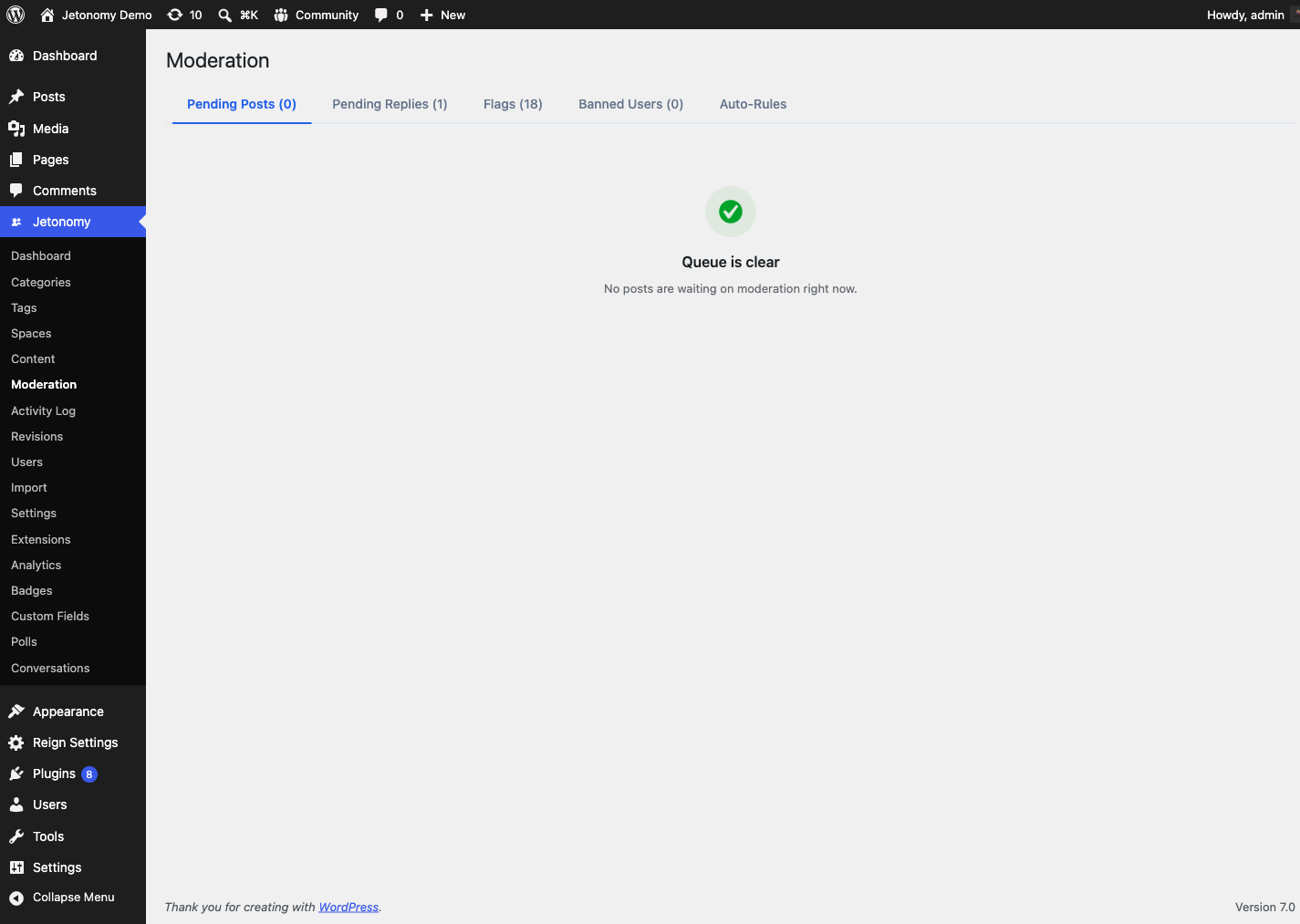
- How flags flow into the moderation queue
How to Flag Content
Every topic and every reply has a ... (more actions) menu. Open it and click Report. A prompt dialog appears asking why you are reporting the content. Type a brief description of the problem - for example, "This contains spam links" or "This is abusive toward another member" - and confirm.
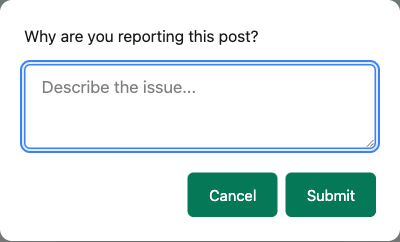
The flag is saved immediately and you receive a confirmation message. The text you type is stored as the flag's description; the member-side report files every flag under the Other reason category, and moderators see that category alongside your description when they review it.
Tip: A good flag reason helps moderators act faster. "Spam" alone works, but "Contains a link to a commercial site unrelated to this community" gives the moderator everything they need without having to investigate.
Who Can Flag Content
Any logged-in member can flag a topic or reply, regardless of their trust level. There is one restriction: you cannot flag your own content.
The flag button is not visible to guests (logged-out visitors). If you want guests to be able to report content, you will need a custom solution - the built-in flagging system requires authentication.
There is no daily limit on flags per member. A member who finds multiple pieces of problematic content can flag all of them.
Reporting a Member
Flagging is not limited to individual posts and replies - a member can also report an entire user account. This is for cases where the problem is the person rather than one piece of content (for example, a member sending unwanted messages or repeatedly causing trouble across many topics).
To report a member, open their profile page (/community/u/their-username/) and click the Report button next to the Message button. A prompt asks why you are reporting the user; type a brief reason and confirm. As with content flags, you cannot report your own account, and the control only appears to logged-in members.
A user report creates a flag the same way a content report does - it is recorded against that member's account, captures your reason text and your name as the reporter, and surfaces in the moderation tools for a moderator to review and act on (for example, by banning the member if the report is justified).
Blocking a Member (1.8.0+)
Blocking hides a member's replies from your own view without removing them for anyone else - useful when you want to stop seeing someone's content without waiting on a moderator.
You can report the member in the same action - blocking and filing a report travel together in one request, so members do not need to submit them separately.
If the blocked member's reply has other replies nested underneath it, only their own content is hidden; the innocent replies in that nested thread stay visible.
Note: Blocking is a personal, per-viewer preference. It does not stop the blocked member from posting, and moderators and other members still see everything as normal. To remove someone's ability to post at all, a moderator needs to ban them.
Where you can block from
This is the part members ask about most, so it is worth being exact:
| Surface | Block a member | Unblock a member |
|---|---|---|
| Mobile app | Yes | Yes |
| REST API | Yes (POST /jetonomy/v1/blocks) |
Yes |
| Web (browser) | Not yet | Yes |
On the web you will not find a "Block" button on a post or a profile. What you will see, once a block exists, is the blocked member's content replaced by a placeholder reading "Content hidden - you blocked this user" with an Unblock this user button. So the web can show and undo a block, but the block itself has to be created from the app or the API today.
If you are on the web and want to stop seeing someone now, the options are to block them from the mobile app, or to report them so a moderator can act.
Blocking someone vs blocking a conversation
Jetonomy has two separate controls, and they are easy to mix up:
Blocking a member (community-wide) is the one described above. It is account-level and applies everywhere you would otherwise see them:
- their posts and replies are hidden from your view across the community
- direct messages between you are refused in both directions - not just theirs to you, but yours to them as well
- it does not affect what anybody else sees
Blocking a conversation (Private Messaging, Pro) is narrower. It silences one specific direct conversation without touching the rest of the community - you keep seeing that member's posts and replies normally, you have simply stopped that thread.
Pick the community-wide block when you do not want this person in your experience at all. Pick the conversation block when the problem is one thread, not the person.
"How do I stop seeing this person?"
Short answer: block them from the mobile app. That hides their content everywhere you would see it and closes direct messages between you in both directions, without involving a moderator and without affecting anyone else's view.
If they are breaking the community's rules rather than simply being someone you would rather not read, report them as well - blocking is private to you, and a moderator cannot act on something nobody told them about.
What a Flag Captures
When a flag is submitted, Jetonomy records:
- The content or member being flagged (a post, a reply, or a user account, with its ID)
- The member who submitted the flag
- The reason category and the reason text they entered
- The timestamp
Moderators see all of this information when they review the flag in the moderation queue.
Reason Categories vs Free Text
When a moderator opens the queue, each flag shows a reason category - one of Spam, Offensive, Off-topic, Harassment, or Other. The built-in Report button that members click always files under the Other category and stores their typed description, so most member-submitted flags you see will be tagged Other with a free-text note.
The other categories (Spam, Offensive, Off-topic, Harassment) come from automated and advanced paths - the REST API, WP-CLI, and Jetonomy Pro's moderation automation - which can file a flag with a specific structured reason. So if you see category chips other than Other in your queue, those flags were raised by an integration or automation rule, not chosen by a member in the standard report dialog.
What Happens to Flagged Content
Flagging alone does not change the visibility of a post or reply. The content stays live and readable by all members until a moderator reviews it and takes action. This is intentional - hiding content automatically on a single flag would allow abuse of the flagging system.
A moderator can then mark the flag Valid (confirming the content breaks the rules, which trashes it) or Dismiss it (marking it unfounded, leaving the content live). See the Moderation Queue guide for the full review workflow.
Note: If the same piece of content receives multiple flags from different members, all flags are grouped under that content item in the moderation queue. Moderators see the total flag count and each individual reason.
Preventing Flag Abuse
Jetonomy does not currently auto-penalize members who submit flags that moderators consistently dismiss. If you have a member who is abusing the flagging system, handle it by adjusting their trust level or banning them from Jetonomy → Users in the WordPress admin.
What's Next?
See how flagged content and posts pending approval appear in the moderation queue, and learn how moderators take action.