

Anti-Spam
The Anti-Spam tab lets you add invisible bot protection to post and reply submission - without disrupting the experience for legitimate members.
What You Will Learn
- Which anti-spam providers Jetonomy supports
- How to add your API keys and enable protection
- How the score threshold works for reCAPTCHA v3
- Which members are automatically exempt from checks
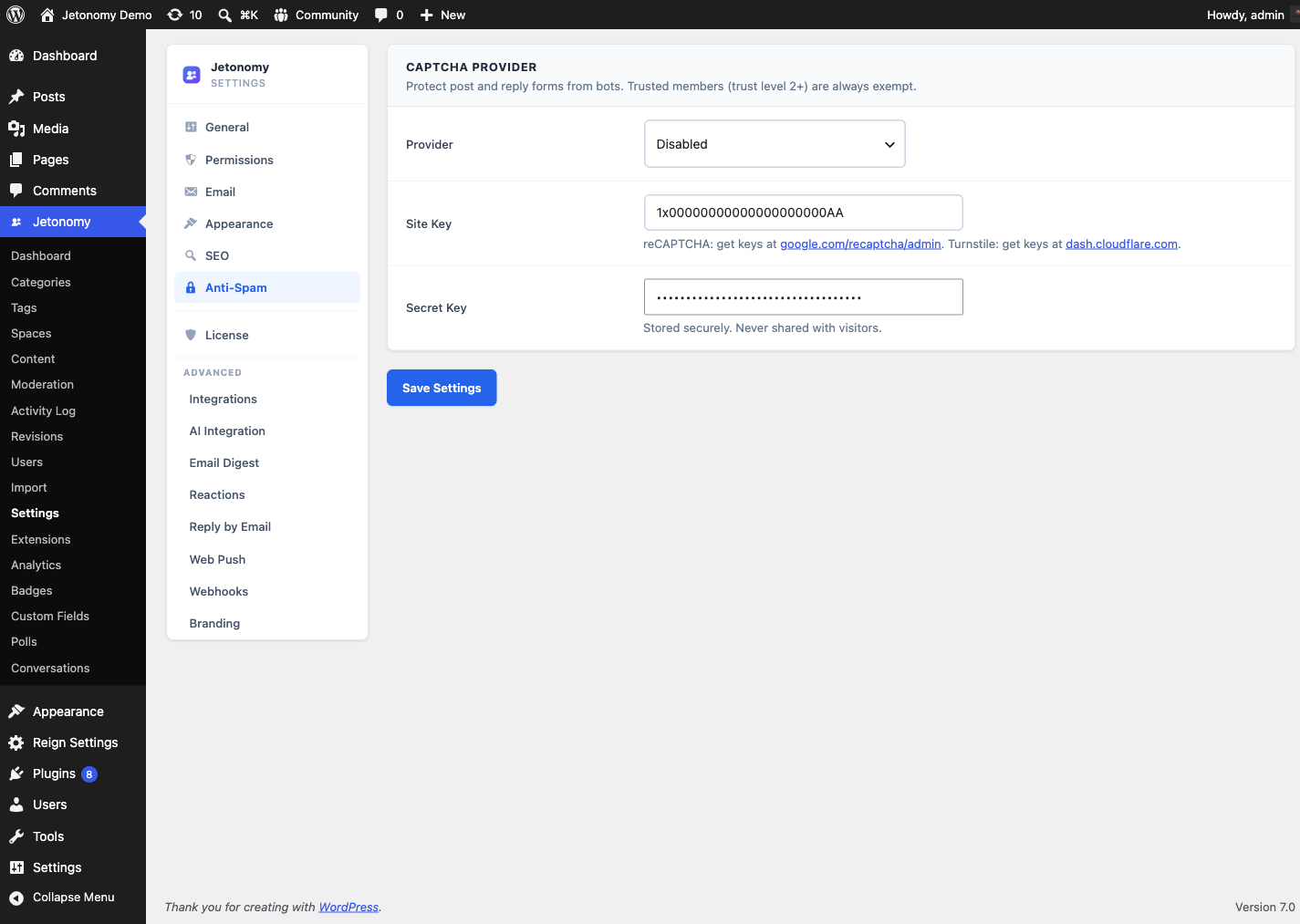
Go to Jetonomy → Settings → Anti-Spam to access these settings.
How It Works
Anti-spam checks run server-side before a post or reply is saved. When a submission fails the check, Jetonomy blocks the save and returns an error to the user. The check is invisible to legitimate members - no checkbox to tick, no image to identify.
Members at Trust Level 2 or above are exempt from all anti-spam checks. Admins are always exempt. This ensures your most active, trusted members never encounter friction.
Choosing a Provider
Setting: captcha_provider
Default: None (none)
Options: None (none), Google reCAPTCHA v3 (recaptcha_v3), Cloudflare Turnstile (turnstile)
| Provider | How It Works | User Visibility |
|---|---|---|
| None | No spam protection | - |
| Google reCAPTCHA v3 | Score-based, no user interaction | Invisible (small badge) |
| Cloudflare Turnstile | Smart challenge, no image puzzle | Invisible (small badge) |
Google reCAPTCHA v3 assigns a risk score (0.0 to 1.0) to each submission. You set a threshold - submissions below it are blocked.
Cloudflare Turnstile is GDPR-friendlier than reCAPTCHA and does not show a challenge unless it detects suspicious behavior. It is a good default for EU communities.
Tip: If you are seeing bot spam despite having anti-spam enabled, also check your Trust Level 0 rate limits in the Permissions tab. Combining low rate limits with Turnstile stops most automated spam without any user friction.
Google reCAPTCHA v3
- Go to google.com/recaptcha/admin and create a new site.
- Select reCAPTCHA v3 as the type.
- Add your domain to the allowed domains list.
- Copy the Site Key and Secret Key.
- Paste them into the corresponding fields in Jetonomy → Settings → Anti-Spam.
- Set the Score Threshold (see below).
- Save settings.
Site Key and Secret Key
Both supported providers (reCAPTCHA v3 and Turnstile) use the same two fields on this tab to store the credentials you copy from the provider's dashboard:
Setting: captcha_site_key
Default: Empty
Location: Anti-Spam tab → Site Key field
The public key that the protection widget loads in the browser. Safe to expose - it is meant to be visible in page source.
Setting: captcha_secret_key
Default: Empty
Location: Anti-Spam tab → Secret Key field
The private key Jetonomy uses server-side to verify each submission with the provider. Keep it confidential - it is rendered as a masked password field and is never exposed to the browser.
Configuration Warnings
Jetonomy checks your provider and key combination as the settings page loads and shows an inline "Heads up" notice at the top of the CAPTCHA Provider card whenever the two do not match. There are two cases:
- Provider selected but keys missing - you picked reCAPTCHA v3 or Turnstile but left the Site Key and/or Secret Key blank. The notice reads: "A CAPTCHA provider is selected but the Site Key and/or Secret Key is empty. The CAPTCHA will not render until both keys are filled in." Resolve it by pasting both keys from the provider dashboard, then saving.
- Keys saved but provider disabled - you saved a Site Key and/or Secret Key but left the Provider set to Disabled. The notice reads: "CAPTCHA keys are saved but the Provider is set to Disabled, so no CAPTCHA renders. Select Cloudflare Turnstile or reCAPTCHA above to activate it." Resolve it by choosing a provider from the dropdown, then saving.
The warning is advisory - it does not block saving. It clears on the next page load once the provider and keys agree.
Score Threshold (reCAPTCHA v3 Only)
Setting: captcha_score_threshold
Default: 0.5
Range: 0.1 to 0.9
Google's reCAPTCHA v3 returns a score between 0.0 (likely bot) and 1.0 (likely human). Jetonomy blocks any submission with a score below your threshold.
| Threshold | Effect |
|---|---|
| 0.3 | Block only very confident bots. May let some spam through. |
| 0.5 | Balanced default. Blocks most bots, rarely affects humans. |
| 0.7 | Strict. May occasionally block mobile users or VPN users. |
Start at 0.5. If you see false positives (legitimate members getting blocked), lower to 0.4. If spam is still getting through, raise to 0.6.
Cloudflare Turnstile
- Go to dash.cloudflare.com → Turnstile and add a new site.
- Select Invisible as the widget mode.
- Add your domain to the allowed hostnames list.
- Copy the Site Key and Secret Key.
- Paste them into Jetonomy → Settings → Anti-Spam.
- Save settings.
There is no score threshold for Turnstile - Cloudflare handles the risk scoring internally. A submission either passes or fails.
Note: Turnstile requires your domain to be exactly correct in the Cloudflare dashboard.
www.yoursite.comandyoursite.comare treated as different hostnames.
Trust Level Exemptions
Members at Trust Level 2 or above are never shown a challenge and their submissions never go through the anti-spam check. The check is skipped entirely on the server side.
This is intentional. Trust Level 2 requires consistent participation over time - members who earn it are clearly not bots.
WordPress admins (manage_options capability) are also always exempt, regardless of trust level.
Testing Your Setup
- Log out of WordPress completely.
- Go to any space on your community.
- Try to create a post or reply.
- If protection is working, the submission should complete (legitimate human request) and no error should appear.
To test blocking, lower the reCAPTCHA threshold to 0.9 temporarily and try submitting. If the error message appears, your integration is working correctly. Reset to 0.5 afterward.
What's Next?
Migrate your existing community data from bbPress or wpForo into Jetonomy.