

Import from wpForo
Move your existing wpForo community into Jetonomy - forums, topics, replies, and user profiles - using the built-in wpForo importer.
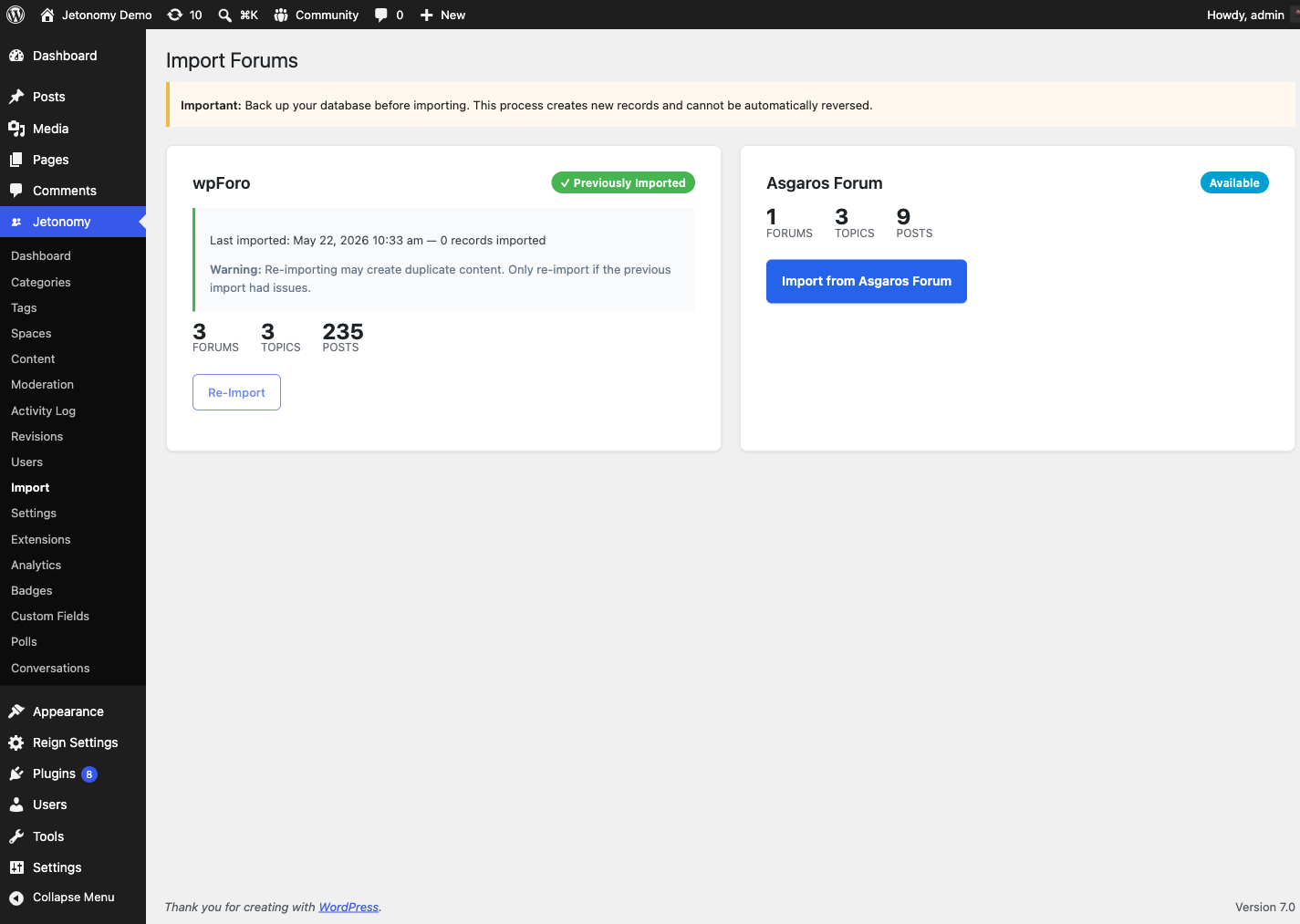
New to migration? Read the Migration overview first - it explains how to read the import screen (stat previews, status badges, the progress tracker) and the backup rule that applies to every import.
What You Will Learn
- What the wpForo importer brings over and how wpForo structures map to Jetonomy
- How to prepare your site before running the import
- How to start and monitor the import
- How wpForo's multi-board and forum structures map onto Jetonomy
- What to verify after the import
What Gets Imported
| wpForo Data | Imported As | Notes |
|---|---|---|
| Forums | Jetonomy Spaces | Forum name, slug, description preserved |
| Topics | Jetonomy Posts | Title and first post content preserved |
| Replies (posts) | Jetonomy Replies | Reply parent relationships preserved |
| User accounts | Linked to existing WP users | Matched by WP user ID |
| Liked posts | Vote score | wpForo likes mapped to upvotes |
| Pinned topics | Pinned posts | Preserved |
| Closed topics | Closed posts | Preserved |
| Inline images and attached files (1.8.0+) | WordPress media library + Jetonomy attachments | Downloaded from wpForo and re-registered as attachments; images stay inline, other files show as a download link |
Not imported:
- wpForo sub-forum hierarchy (all forums, including sub-forums, are flattened into spaces under the board's category)
- wpForo topic tags
- wpForo user reputation / points
- wpForo user roles and moderator assignments (assign Space Moderator roles manually after import)
- wpForo private conversations (different data structure; import to Jetonomy Pro private messaging separately)
- wpForo groups and group memberships (map manually to Jetonomy spaces)
- wpForo custom user groups beyond standard roles
- Embedded wpForo media that uses shortcodes instead of standard
<img>tags (standard<img>tags and file attachments import normally as of 1.8.0)
Attachments (1.8.0+): If a file cannot be recovered - for example it is already missing from disk - the import still completes and tells you how many files it could not bring over ("N files could not be recovered and were left linked in the original post text"). That is a warning to check a handful of posts by hand, not a failed import. See the Migration overview for details.
wpForo Data Structure Differences
wpForo and Jetonomy structure their data differently in a few key areas:
Multi-board support - wpForo lets you run multiple boards, each with its own set of forums and topics. The importer automatically detects all of your active boards and imports each one into its own Jetonomy category. Single-board installs work without any extra configuration.
Forums and categories - Within each board, wpForo nests forums inside forums. Jetonomy separates categories (top-level groups) from spaces (discussion areas), so the importer creates one Jetonomy category per board and one space per wpForo forum. Sub-forum nesting is not preserved - every forum (parent or child) becomes a flat space under the board's category.
For developers: wpForo stores each board's data in its own set of tables (
wp_wpforo1_*,wp_wpforo2_*, and so on) and tracks boards inwpforo_boards. The importer readswpforo_boardsto discover boards and auto-detects the table prefix, so a custom prefix needs no configuration.
Post structure - In wpForo, the first "post" of a topic is a reply in the same table. In Jetonomy, topics and replies are separate entities. The importer promotes the first wpForo post as the Jetonomy post body and imports subsequent posts as replies.
Reputation - wpForo reputation and points are not imported. After import, trust levels are re-evaluated by the cron job based on activity within Jetonomy and your configured thresholds.
Pre-Import Checklist
- Back up your database. The importer reads but never modifies wpForo tables, but a backup protects against any edge cases.
- Activate Jetonomy and complete the setup wizard.
- Keep wpForo active during the import - the importer reads from wpForo's live tables.
- Check your wpForo table prefix. If wpForo uses a custom prefix, confirm it in
wpforo_boards- the importer auto-detects it. - Disable wpForo page caching if active, to avoid stale data during the import process.
Tip: If you have over 50,000 topics, use WP-CLI to run the import. Browser-based imports on large databases can time out on shared hosting.
Running the Import
- Go to Jetonomy → Import in your WordPress admin.
- Select wpForo as the source.
- Click Start Import.
The wpForo importer runs the entire import in a single pass - the progress bar advances in one step from start to complete. (The bbPress importer, by contrast, runs in true incremental batches.) Because it is single-pass, larger wpForo databases are best imported via WP-CLI to avoid browser timeouts.
Preview Before You Import
Always take a full database backup before you run the wpForo import - that is your way to undo if you want to start over. There is no preview mode for wpForo: only the bbPress importer supports a true --dry-run that counts records without writing them. The wpForo importer always writes data, so a backup (not a dry run) is your safety net.
Heads up: The
--dry-runflag is accepted on thewp jetonomy import wpforocommand, but the wpForo importer does not act on it - it performs the real import either way. Do not use it expecting a preview.
Estimated Import Times
| Community Size | Topics + Replies | Estimated Time |
|---|---|---|
| Small | Under 10,000 | 2 - 5 minutes |
| Medium | 10,000 - 100,000 | 10 - 40 minutes |
| Large | 100,000 - 500,000 | 1 - 4 hours |
| Very large | 500,000+ | Use WP-CLI |
Resuming a Paused Import
The wpForo import runs as a single pass, so there is no mid-import resume point. If it is interrupted (timeout, server restart, or closed browser), it cannot be resumed partway through - return to Jetonomy → Import and click Start Over to run it again. For this reason, run large wpForo imports via WP-CLI, which is not subject to browser timeouts.
Running via WP-CLI
Run this from your server's command line (SSH); on most managed hosts you point it at the WordPress install with --path. The valid source value is wpforo (lowercase) - if you mistype it, the command lists the sources it recognizes.
wp --path="/path/to/wordpress" jetonomy import wpforo
WP-CLI is the recommended way to import larger wpForo databases - it is not subject to browser timeouts and prints an Imported / Skipped / Errors summary when finished.
Note: The
--dry-runflag is accepted by the command but is not honored by the wpForo importer - it will still write data. Take a backup first.
Space Types After Import
All imported wpForo forums become standard Forum spaces in Jetonomy. wpForo post types (Normal, Question/Answer, Debate) are not mapped to Jetonomy space types - if you want a space to behave as Q&A, change its type in Jetonomy → Spaces after the import.
Access and Visibility After Import
The importer preserves each board's read access instead of flattening everything to public. It reads the wpForo forum's groups_can_view setting:
- A forum that guests can read imports as a Public space with an Open join policy - anyone can find and read it.
- A forum that was members-only (guests are not in the allow-list) imports as a Private space with an Approval Required join policy - the content stays gated and new members are vetted, exactly as it was on wpForo. A members-only board is never opened up to the public by the import.
- When wpForo records no access signal at all, the space defaults to Public - the importer only tightens access when there is a clear restriction to preserve.
For developers: map access per site with the
jetonomy_import_space_visibilityfilter. It receives the resolved[ visibility, join_policy ]array, the importer slug (wpforo), and the source forum row, so you can force every imported board private, whitelist specific boards to public, or apply your own rule. Any value the filter returns is validated against the allowed visibility and join-policy options before it is saved.
Post-Import Checklist
After the import completes:
- Visit your community home and confirm spaces match your old wpForo forums
- Open several posts from different spaces and verify content is intact
- Assign Space Moderator roles to your former forum moderators (moderator assignments are not imported)
- Go to Settings → Permalinks and click Save to flush rewrite rules (the wpForo importer does not flush them automatically, so this step is needed if new spaces return a 404)
- Remove or update any wpForo shortcodes on pages and widgets
- Consider deactivating wpForo after confirming the import - it is no longer needed
Note: If your wpForo installation used a third-party plugin for member ratings or post reactions, those values are not included in the standard import. Developers can extend the importer through the
jetonomy_importersfilter.
Re-running an Import
Once wpForo has been imported, its card on Jetonomy → Import changes to a Previously Imported badge showing the date and record count of the last import, and the Start button becomes Re-Import. Jetonomy warns you first because re-importing creates duplicate content - it does not skip what you already brought over. Only re-import if the first attempt had a real problem.
What's Next?
Migrating from Asgaros Forum instead? The process is similar with a few Asgaros-specific mappings.
Already imported? Configure who can read your community and how members earn trust.