


Most support sites answer the same twenty questions again and again. The answers exist. They are in a ticket thread from March, in a Slack message, in the head of the person who has been on support longest. A customer who needs one of them opens a new ticket, and someone types it out for the hundredth time.
A Q&A section with accepted answers fixes this with a simple mechanism: every question gets one marked solution, shown first, on a page a search engine and your own search box can find. This guide walks through setting one up with Jetonomy, a community plugin for WordPress, and then compares it fairly with a help-desk knowledge base and with hosted Q&A products, because the right answer depends on what you already run.
What an accepted answer actually does
In a plain forum thread, the fix to “why does the export fail” might be reply fourteen. Nothing marks it. A visitor has to read all fourteen replies, or gives up and posts the question again.
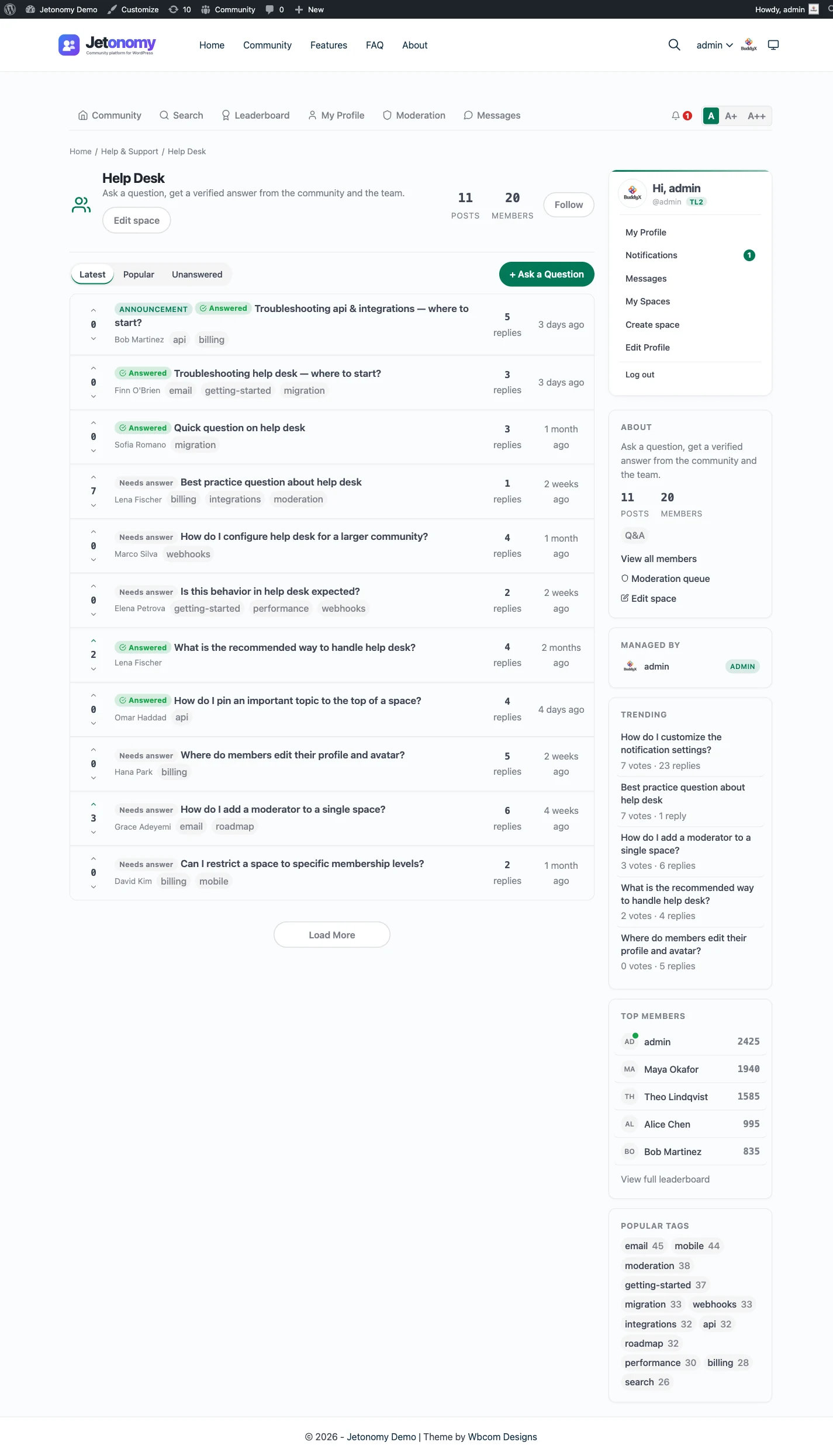
In a Jetonomy Q&A space, every post is a question and every reply is an answer. Each answer can be voted up or down. The person who asked, or a moderator, clicks Accept on the reply that solved it. The reply gets an Accepted tag, and if it sits on a later page of a long thread it also appears in an Accepted answer box above the replies. The question gets an Answered badge in the space list. If the choice was wrong, Unaccept reverses it.
Votes and acceptance do different jobs. Votes say “this helped me” and sort the replies. Acceptance says “this solved the question” and is a single, deliberate mark. A thread can have a highly voted answer that is not the accepted one, which is useful when an older answer is popular but a newer one fits current versions.
What the free plugin gives you for support
Everything below is in the free Jetonomy plugin, checked against the plugin documentation.
- Q&A space type with the composer hint to phrase the title as a question.
- Accepted answers by the asker or a space moderator or admin, one per question, with reversal.
- Reply voting with a Best sort inside a thread and a Popular sort on the space listing.
- Unanswered filter on the space listing, which shows topics with no accepted answer. This is your support team’s open-questions view.
- Similar-topic suggestions while a customer types the title: up to five matching topics appear under the field, so many duplicates are never posted.
- Full-text search across topic titles and content, spaces and tags, with filters for date, author, tag, and a Most Voted sort.
- Tags that cross spaces, so a tag page for a feature shows every question about it.
- Trust levels, flagging, a moderation queue, per-space post approval, CAPTCHA options and Akismet support.
- Private topics for the question a customer should not post publicly.
- Topic prefixes such as Bug or Billing, set per space.
- QAPage structured data on a question with an accepted answer.
Free plugin or not, the Q&A depends on people actually answering, so the setup below puts as much weight on who answers as on the settings.
Step 1: Structure categories by product area
Do this before anyone posts. Categories are the top-level groups on the community home, and a space has to sit in one. For a support site, structure by how a customer thinks about the problem, not by how your team is organised.
For a single product, a workable structure is:
- Category Support, with spaces Getting started, Billing and licences, Troubleshooting and Integrations.
- A separate category Product for an Ideas board, covered in feature voting on WordPress.
For several products, make one category per product and put the same few spaces inside each. A customer using Product B should never have to scroll past Product A’s questions.
Two rules help. Keep it to two levels, since categories nest only two deep anyway. And start with fewer spaces than you think you need. You can split a busy space later by moving topics, and the move keeps replies, votes, bookmarks and subscriptions. You cannot easily rescue a customer who landed in an empty space that looked dead.
Step 2: Create the Q&A space
The admin flow is documented in launch a support forum. In brief:
- Go to Jetonomy > Spaces > Add New.
- Give it a plain title such as
Help Deskand a one-line description of what to ask here. - Pick the category.
- Set Type to Q&A.
- Set Visibility to Public and Join Policy to Open, so customers and search engines can read answers and customers can ask without waiting.
- Create the space.
Want it for paying customers only? Follow restrict a space to paying members afterwards. Keep one public space for the questions that bring in search traffic, and gate only the ones that really need it.
Step 3: Decide who answers
A Q&A without answerers is a graveyard. Decide on three groups:
- Your support staff. Add them to the space with the Moderator role. They can accept answers, close, pin and move topics, and they do not need wp-admin access.
- Power customers. Members who answer well earn reputation. By default an upvoted reply is worth 5 points and an accepted answer 15, and the values are editable under Jetonomy > Settings > Permissions. The leaderboard and trust levels give regulars something to aim at.
- Nobody but staff. If you want only staff to answer, set Who Can Reply to Moderators & Admins on the space. Customers can still ask.
Most products start with staff-only answers while the space fills, then open replies once there is a base of accepted answers for newcomers to copy.
Make sure staff hear about new questions. Followers of a space are notified of new topics, and the email notification is off by default, so turn it on for the staff group under Jetonomy > Settings > Email > Notification Defaults or per person on the profile.
Step 4: Set trust levels and anti-spam before you announce
Public Q&A attracts spam, so set the guard rails first.
Trust levels. Every new member starts at level 0 (Newcomer). Levels 1 to 3 are earned automatically from activity, with defaults of 5 posts, 3 days active and 10 replies received for level 1, and 30 posts, 20 days and 50 reputation for level 2. Levels 4 and 5 are granted by an admin. The practical effects are specific: new accounts have daily caps (by default 3 topics, 10 replies and 5 votes), level 1 and above are free of those caps, and level 2 and above skip CAPTCHA. Trust level alone never makes someone a moderator. Give moderation to a person through the space role.
CAPTCHA. Jetonomy supports reCAPTCHA v3 and Cloudflare Turnstile under Jetonomy > Settings > Anti-Spam. The default is off. Akismet is supported as a second layer.
Post approval. For a brand-new space, turn on Require Post Approval in the space settings so every new post from a non-moderator waits for review. Switch it off once the community has a rhythm.
See stop spam and low-quality posts and the trust levels doc for the details.
Step 5: Moderate for answer quality, not just spam
Spam is the easy half. The harder half is keeping the Q&A useful over time.
- Merge duplicates. Open the duplicate, choose Merge from the three-dot menu, and pick the original. Replies, votes, followers and bookmarks move across, and the duplicate’s opening text is kept as a reply headed Merged from.
- Close solved threads if you want to stop late replies. A closed topic stays readable and moderators can still reply.
- Move misfiled questions to the right space. The old URL redirects.
- Pin a short list. Each space allows three pinned topics by default. Use them for “read this first” and the known-issue of the month.
- Use the queue. Members flag content with the Report button, and moderators work through the moderation queue. Valid flags cost the author reputation, dismissed ones give it back.
- Chase the Unanswered filter. Once a day, open the space and sort by Unanswered. Anything unanswered for more than a day is a signal that you either need another answerer or the question is really a ticket.
Pro adds advanced moderation rules (keyword, regex, link-limit, new-user and spam-score rules) and AI-assisted moderation, reply suggestions and thread summaries. Those are optional and need Jetonomy Pro, and AI features can run through a provider you choose, including a self-hosted one. Humans still approve drafted replies.
Step 6: Link it from the help desk
Your help desk and your Q&A do different jobs, and the two should point at each other.
From the help desk to the Q&A. Add a “search the community before you contact us” link to your contact form, your auto-reply, and the footer of your agents’ replies. Put a direct link to the space and one to the search page (/community/search/).
From a ticket to a specific answer. When an agent solves something that a customer could have found, they paste the question URL into the reply. That is a one-line habit and it builds the habit in customers.
From a solved ticket to a new question. When a ticket exposes a gap, an agent posts the question and answer in the Q&A (a moderator can answer their own question) so the next customer finds it. Do this for the five tickets a week that you have answered most often.
Integrations. Jetonomy has no built-in connector to any particular help desk. What it has is plain links, a REST API, and, in Pro, outbound webhooks whose events include new posts, replies, votes and accepted answers. If your help desk or automation tool can take a webhook, you can post to it when a new question arrives. Treat that as a small integration project, not a switch.
Private questions deserve a note. A customer can mark a question Private so only they and moderators see it. That is good for a quick sensitive question, but anything with account data or payment details belongs in your help desk, where tickets have the audit trail and access control your support policy needs.
Step 7: Seed it, announce it, measure it
An empty Q&A looks abandoned. Before launch, write fifteen to twenty real questions from your ticket history, answer them as staff, and accept the answers. Phrase titles as customers would, not as your internal names for things.
Then point customers to it from your onboarding email, your docs and your ticket auto-reply.
To measure, watch two numbers over a quarter: how many tickets cite a question URL, and how many of your common ticket topics have an accepted answer. With Pro, the Analytics dashboard shows top spaces and contributors. Without it, the space listing’s Answered and Unanswered filters and your help desk’s own reports are enough.
Worked example: a SaaS tool with 40 tickets a day
A scheduling tool gets about 40 tickets a day. A tag review of last month’s tickets shows that nine topics account for roughly half of them: connecting a calendar, a failed invite, time zones, exporting reports, changing a plan, SSO setup, a sync delay, and two billing questions.
The support lead creates a Support category with three spaces: Setup and integrations, Using the app and Billing. She posts and answers the nine topics herself, accepts each answer, adds tags like calendar and sso, and pins a “start here” topic in each space.
She adds one line to the auto-reply, “Most of these are answered in our community, search first,” and asks agents to paste the question URL when they reuse an answer. Staff get an email for each new question. Two long-time customers start answering within a month, and she gives them the Moderator role in the one space they cover.
After a quarter, the nine topics generate far fewer tickets. She is careful not to claim a number she did not measure, so she compares ticket counts by topic before and after, and keeps the Unanswered view open on Monday mornings.
How this compares with a help-desk knowledge base
A knowledge base is the article library that comes with most help-desk products, or a docs site like the one you are reading. It is the right place for:
- Official how-to steps your team writes and keeps accurate.
- Setup guides, policies, and reference material.
- Content you need an owner and a review date for.
A knowledge base is weaker at questions nobody thought to write an article about, because someone has to notice the gap, write the article and publish it. It also reads as one voice, which is good for trust and slow for coverage.
A Q&A is the opposite. It grows from what customers actually ask, answers come from your team and peers, and it is searchable in the customers’ own words. It is weaker for authoritative, versioned instructions, because answers age and must be maintained by votes and moderators.
Most support sites should have both. Use the knowledge base for the official path, the Q&A for the long tail, and link between them: knowledge-base articles end with “still stuck? ask the community”, and accepted answers link to the article when one exists. If you have to pick one and have a small team, the question is who writes. If your team writes, start with articles. If customers will help, start with Q&A.
The cost model differs too. Help-desk knowledge bases are usually included as part of the help-desk subscription, priced by agent seats, so the content is tied to that vendor. A Q&A in Jetonomy lives on your WordPress site, costs your existing hosting plus your moderators’ time, and stays when you change help desks.
How this compares with hosted Q&A tools
Stack Overflow style hosted products. Stack Overflow’s product for organisations, now called Stack Internal and previously Stack Overflow for Teams, is built around internal knowledge. Its own site frames it as a trusted knowledge base for engineers, teams and AI agents behind a secure perimeter, with connectors to tools like Slack, Teams, Jira, Confluence and GitHub. It is a strong choice for an engineering team’s private knowledge. It is not aimed at public customer support on your own domain, so it is the wrong shape for this job.
Discourse. Discourse is a standalone forum application, and accepted solutions come from its Solved feature, bundled with core since 2025 and switched off until an admin turns it on. It is a mature, widely used option, especially for large public communities that are not part of a WordPress site. The trade is a separate application with its own server or hosting plan and its own login. The Discourse alternative page compares the two in detail, including when Discourse is the better pick.
WordPress forum plugins. If you already run bbPress, wpForo or Asgaros, you can move to Jetonomy with the built-in importers, which cover those three plugins. See move from bbPress or wpForo, and the bbPress and wpForo comparisons.
The difference that decides most cases is where the people are. If your customers already have WordPress accounts, because they bought through your WooCommerce store or hold a membership, a Q&A inside the same site uses one login and one set of pages. If your product has no WordPress presence, a separate hosted tool means no WordPress to maintain.
When something else is the better choice
Be honest about the limits. Jetonomy’s Q&A is the wrong tool if:
- You do not run WordPress and have no reason to. A hosted product or Discourse will fit better.
- You need ticketing features such as SLAs, assignment, canned responses and queues. That is a help desk’s job, and Jetonomy does not replace one.
- Your answers must be authoritative and versioned. Use a knowledge base, then add Q&A for the tail.
- You need it private for engineers only. Internal knowledge tools are built for that.
- You expect a huge public community from day one and have a team to run a dedicated forum server.
And it is a good fit if you run a WordPress site with products, courses or memberships, your customers already have accounts, and you want support answers to accumulate on your own domain.
A short checklist before you launch
- Categories and spaces match how customers describe problems.
- The space is public with open joining, and the Unanswered filter works.
- Staff are moderators and receive new-question emails.
- CAPTCHA and post approval are decided.
- Fifteen to twenty real questions are posted and answered.
- The help desk auto-reply, contact form and agent signature link to the space.
- Someone owns the Monday review of Unanswered.
For the matching feature page, see Q&A with accepted answers, and the support forum and Q&A peer-learning journeys show the member and admin sides. If customers also ask for features, add an Ideas board next to it as described in feature voting on WordPress.